
Book Square And Shopify Payouts
Book a Square or Shopify payout as sales, sales tax and fees in one balanced entry, either in the Solarium app or by asking your AI in Claude.
A Square or Shopify payout is not your sales. It is your sales plus the tax you collected, minus the processor’s fees. This guide shows you how to book each payout in Solarium as one balanced entry, so your sales, your GST/HST and your fees all land in the right place.
Before You Start
- You need the Essentials plan or Done For You. Payouts reach Solarium through your bank feed, and bank feeds aren’t part of the Free plan.
- Connect the bank account your payouts land in. See Connect Your Bank.
- Have the payout breakdown open. In Square, that’s the transfer report. In Shopify, open Finance, then Payouts, and pick the payout. You need the gross sales, the tax collected and the fees.
- Know your accounts. You’ll use your bank account, a sales account, your GST/HST payable account and a fees account like Merchant Fees.
Steps
1. Connect Square Or Shopify (Optional)
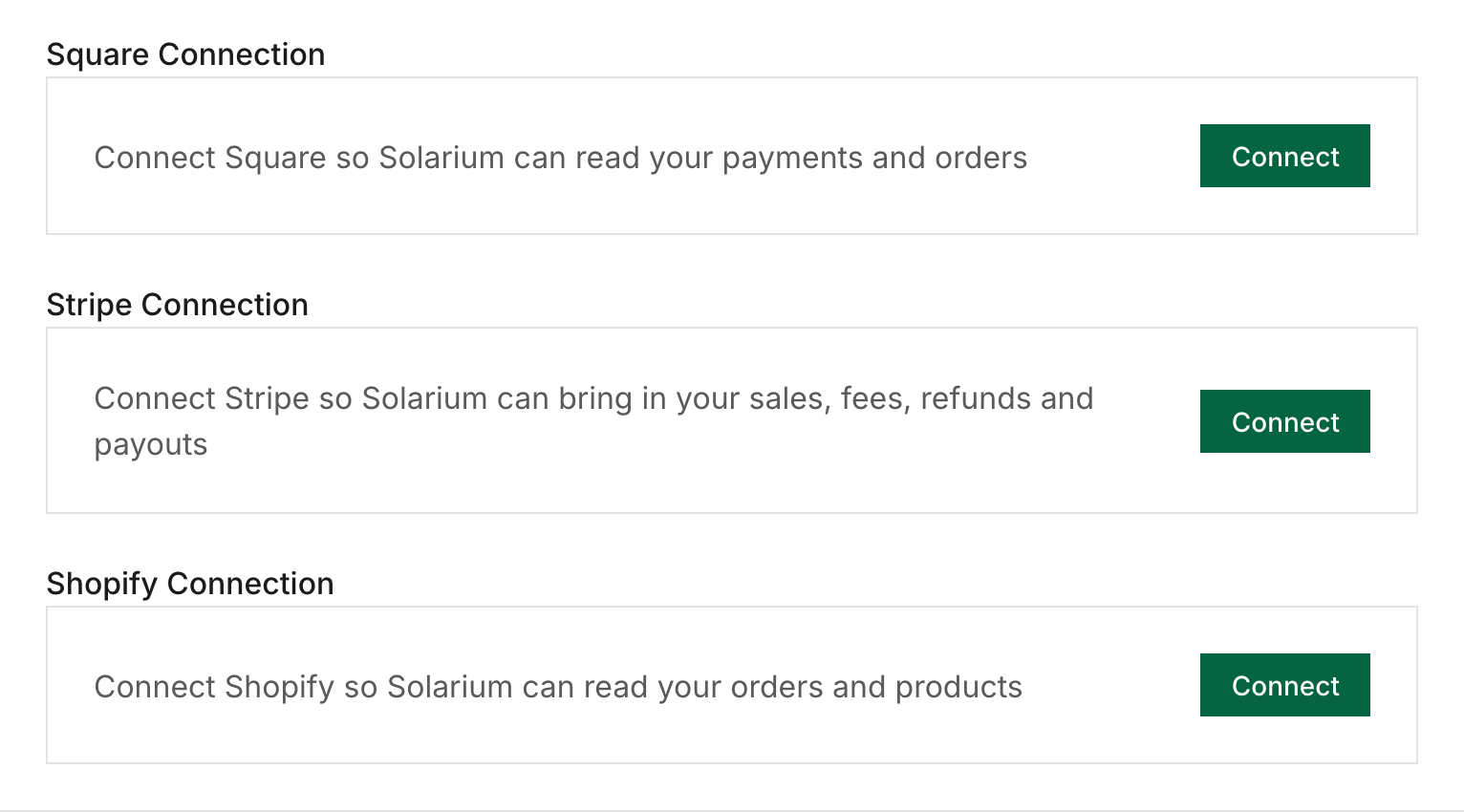
Go to Settings, then Integrations. Under Square Connection, click Connect and sign in to Square. Under Shopify Connection, click Connect, enter your store domain and approve the app in Shopify.
This step is optional for bookkeeping. The connection is read-only. It lets Solarium read your payments, orders and products, but it doesn’t create entries. The Shopify section only shows once it’s switched on for your business.
2. Find The Payout In Your Transactions
Each payout comes in with your daily bank feed as a deposit waiting for review. Go to Transactions and click the deposit to open it. Riio Systems Inc., our made-up Ontario business, sees a Square deposit of $1,092.50.
3. Open The Journal Lines Editor
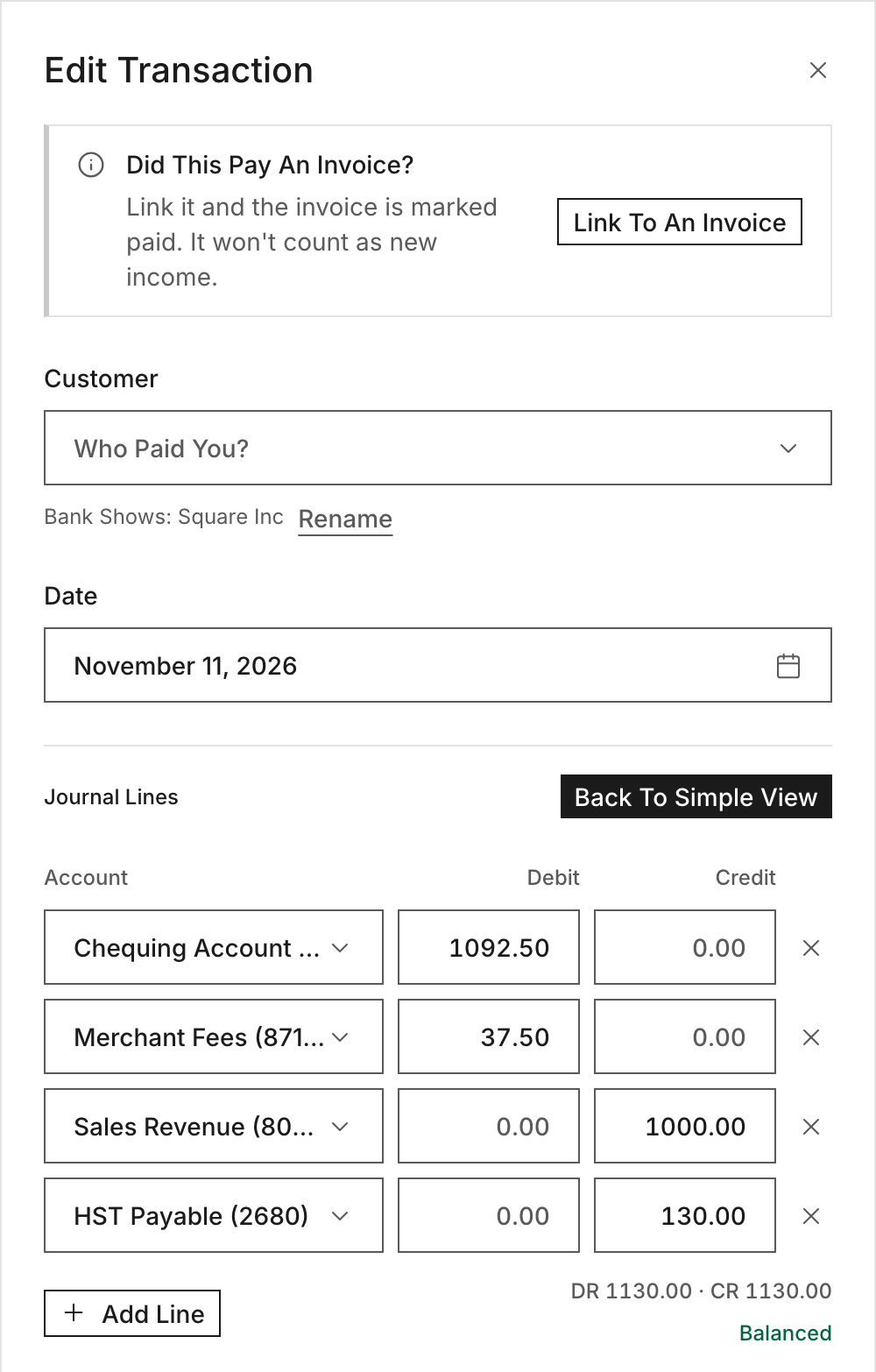
In the transaction drawer, find the Journal Lines row and click Edit. Solarium switches the drawer to a line editor with Account, Debit and Credit columns. Click Back To Simple View any time to leave it.
4. Enter The Gross-To-Net Lines
Use Add Line until you have one line per piece. For Riio’s payout:
- Debit your bank account $1,092.50. Keep this line equal to the deposit.
- Debit Merchant Fees $37.50.
- Credit Sales $1,000.00.
- Credit HST Payable $130.00.
Under the lines, Solarium shows the debit and credit totals. When they match, it says Balanced. If not, it shows how far out you are, like “Out of balance by 10.00”.
5. Confirm It
Click Confirm. Solarium posts the payout as one entry. Your sales now show the full $1,000.00, the $130.00 of HST counts on your GST/HST return, and the fee is an expense you can claim.
What Happens Next
The payout is booked and leaves Review. Sales and fees show on your Profit & Loss, and the HST you collected appears on line 103 of the Sales Tax Report. If you use QuickBooks Online, the confirmed entry syncs there too.
For your next payout, repeat steps 2 to 5. If you’d rather not, the Solarium team books every payout for you on the Done For You plan.
Troubleshooting
- Confirm stays greyed out. The lines don’t balance yet. Check the “Out of balance by” amount under the lines and fix the line that’s off.
- There’s no Edit button. The editor is only offered on a transaction you can still change. A split transaction or payroll stays view-only, and an entry locked in a closed period can’t be edited here.
- The deposit isn’t there. Payouts only arrive once your bank is connected, and Free plan businesses can’t connect a bank feed. Upgrade in Settings, then Billing.
- You booked a payout as plain sales. Open it in Transactions and edit its lines, or ask your AI to rebook it.
Ask Your AI
If you’ve connected Solarium to Claude, your AI can book payouts with you. It previews every entry, and nothing is saved until you say yes. These tools aren’t in the ChatGPT app yet.
- “Book my Square deposit from November 3 as $1,000 of sales, $130 of HST and $37.50 of fees.”
- “Here’s my Shopify payout export for October. Book the month as one journal entry with sales, discounts, shipping, tax and fees.”
- “I booked last week’s Shopify deposit as sales. Rebook it gross to net.”
Common Questions
Does Solarium Book My Square Or Shopify Payouts Automatically? +
Not yet. Each payout arrives through your bank feed as a deposit in Review. You split it into sales, tax and fees yourself in the Journal Lines editor, or you ask your AI in Claude to do it with you.
What Does Connecting Square Or Shopify Do? +
It gives Solarium read-only access to your Square payments and orders, or your Shopify orders and products. Solarium doesn't turn those orders into entries yet, so the payout is still booked from the bank deposit.
Why Can't I See Shopify In Settings? +
The Shopify connection is switched on per business right now. If you don't see it under Integrations, send the Solarium team a message and we'll turn it on.
Can I Book A Whole Month Of Shopify At Once? +
Yes. Your AI in Claude can post one journal entry with a month's sales, discounts, returns, shipping, tax and fees. Solarium previews it and checks that it balances before anything is saved.