
Get Started With Solarium
Create your Solarium account, set up your business, connect your bank or QuickBooks, link your AI and send your first receipt, all in about five minutes.
This guide takes you from no account to working books. By the end, Solarium knows your business, your bank or QuickBooks is connected, and your first receipt is on its way in.
Before You Start
- No plan to pick yet. A new bookkeeping business starts on a free Essentials trial with no card. It ends when your first month’s books close, or after 45 days, whichever comes first. Then you move to the Free plan and keep everything, unless you add a card.
- A Canadian or US mobile number. Solarium texts you a sign-in code.
- Your business basics. The business name, your province, and how often you file GST/HST.
- Your online banking login, if you want to connect your bank now. Or your QuickBooks Online login if your accountant uses QuickBooks.
Steps
1. Create Your Account
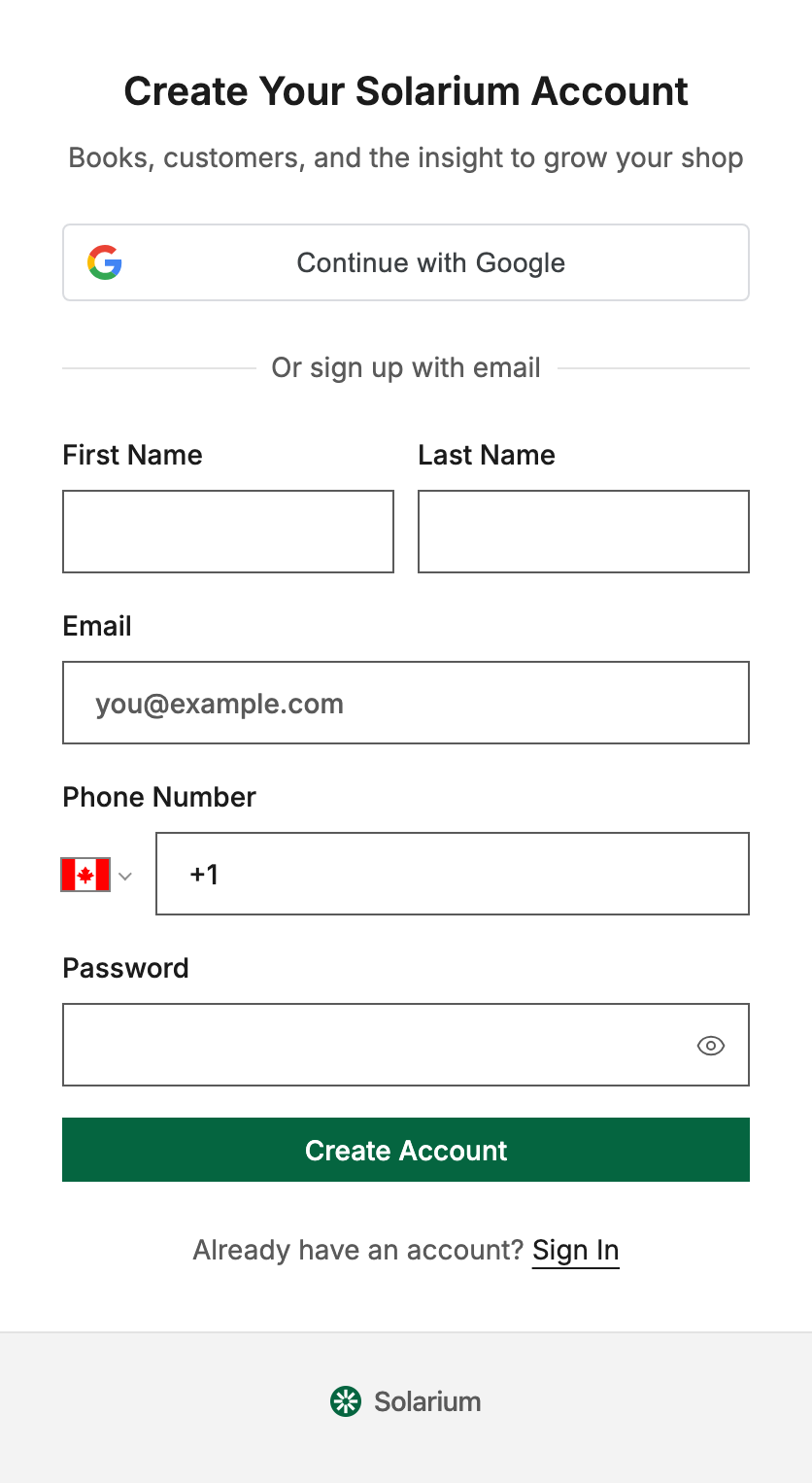
Go to admin.trysolarium.com/signup. On Create Your Solarium Account, sign up with Google, or fill in First Name, Last Name, Email, Phone Number and Password (at least 8 characters). Click Create Account.
2. Verify Your Phone
Solarium texts a 6-digit code to your phone. Type it in and click Verify. No text after 30 seconds? Click Resend, or Email me the code instead.
3. Choose Solarium Bookkeeping
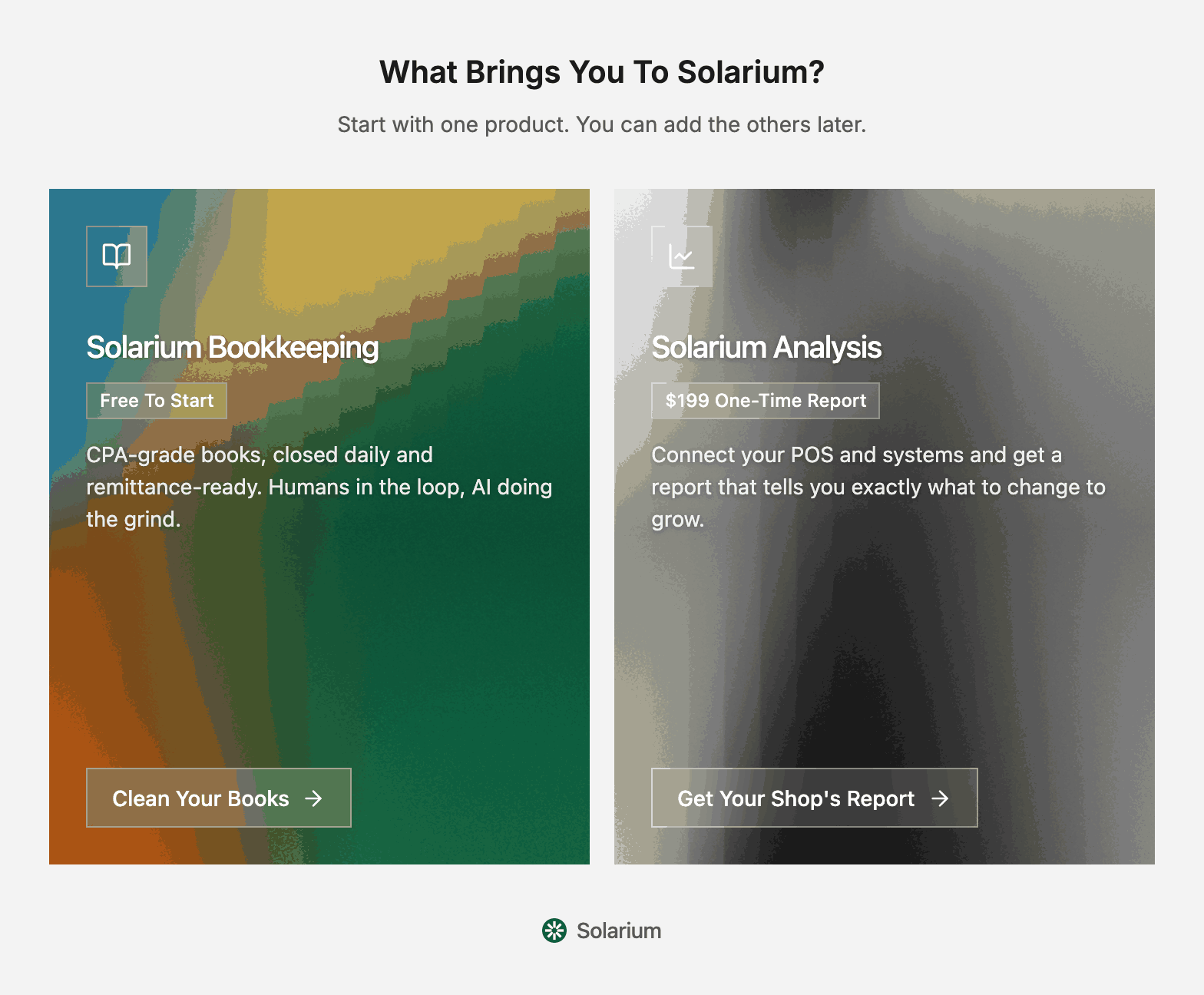
On What Brings You To Solarium?, pick the Solarium Bookkeeping card and click Clean Your Books.
4. Set Up Your Business
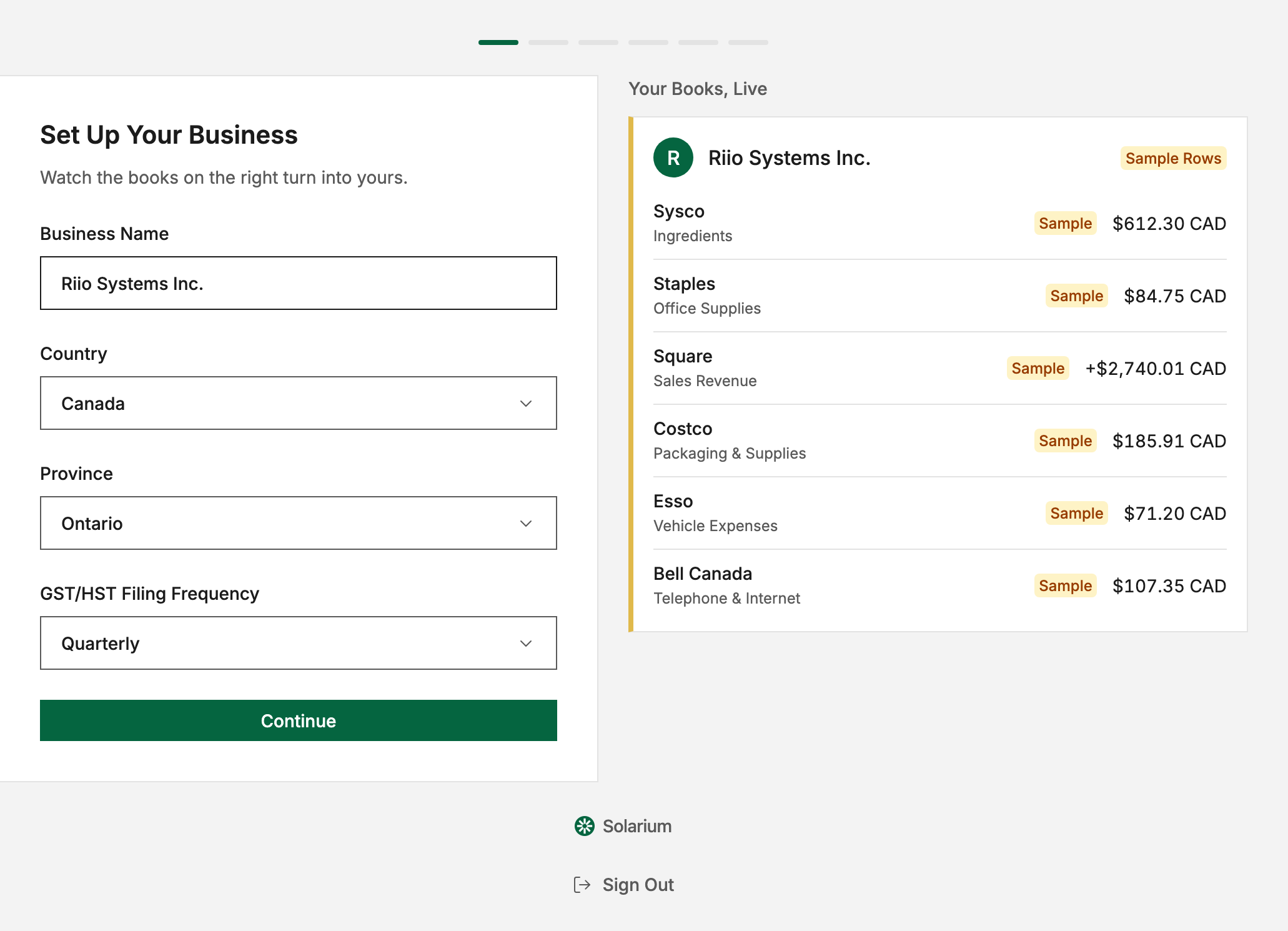
On Set Up Your Business, enter your Business Name. Keep Country on Canada and choose your Province. Then pick your GST/HST Filing Frequency: Monthly, Quarterly or Annual. Click Continue.
For our example, the owner of Riio Systems Inc. types “Riio Systems Inc.”, picks Ontario and chooses Quarterly.
5. Choose How To Set Up
Pick Do It Yourself to connect your accounts step by step. It takes about 5 minutes. Or pick Set Up With Solarium Staff to book a free 15-minute call, and the team connects everything with you.
6. Connect Your Bank Or QuickBooks
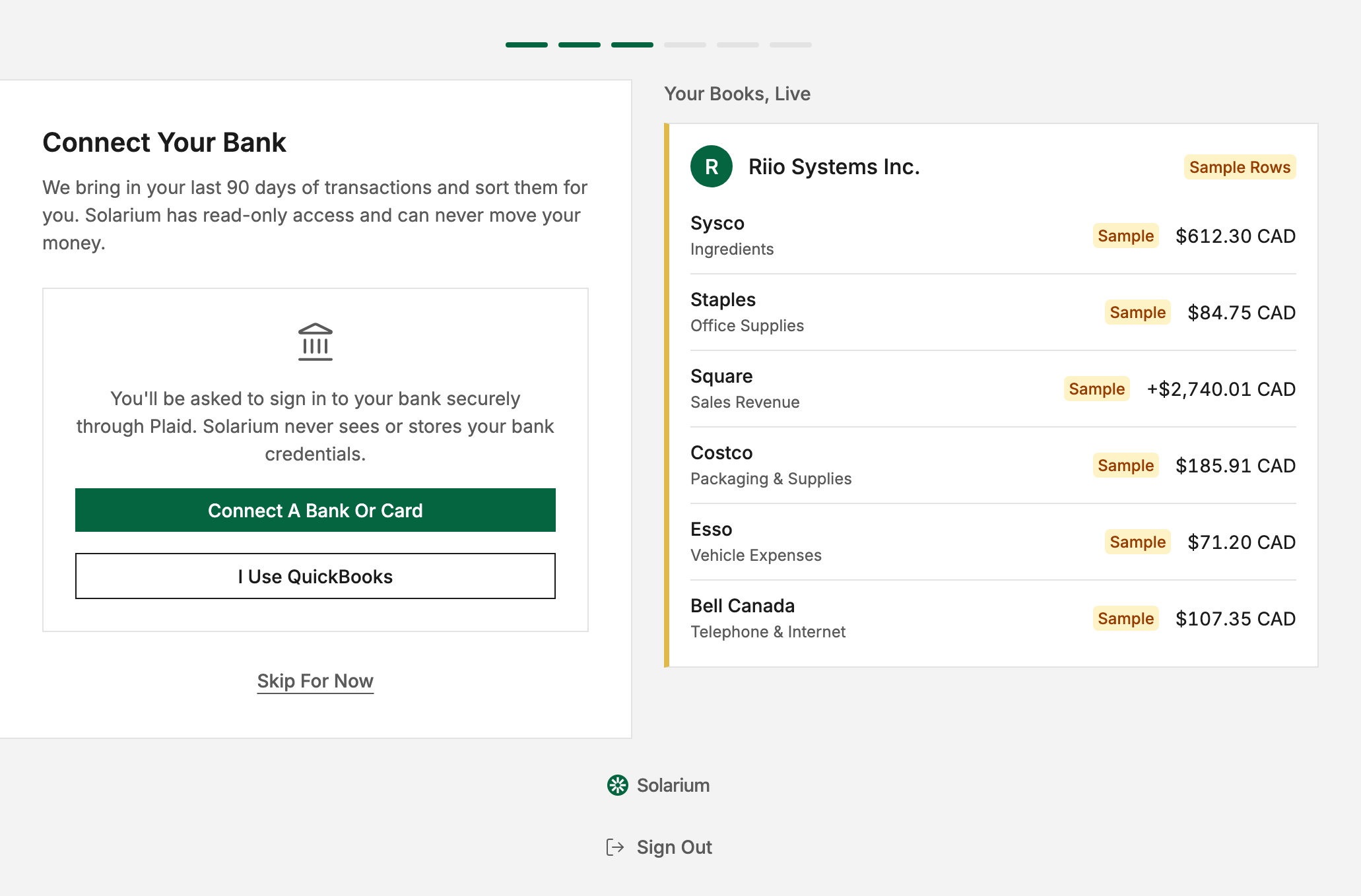
On Connect Your Bank, click Connect A Bank Or Card and sign in to your bank through Plaid. Solarium brings in your last 90 days of transactions. It has read-only access and can never move your money. You don’t have to wait for the import. Click Continue when you’re ready.
If your accountant keeps your books in QuickBooks Online, click I Use QuickBooks instead, then Connect QuickBooks. You’ll sign in at Intuit and come back here.
7. Connect Your AI
On Connect Your AI, you’ll see your Solarium address. Click Open Claude Connectors or Open Solarium In ChatGPT and follow the steps there. The status turns green on its own once your AI connects. You can also do this later. See Connect Solarium To Claude or Connect Solarium To ChatGPT.
8. Send Your First Receipt
On Send Your First Receipt, forward any receipt from your email to [email protected], or text a photo of one to +1 (334) 319-9062 from your phone. A Receipt In note appears when it arrives. Click Go To My Books.
What Happens Next
You land on the Review Inbox. Bank transactions and receipts show up there for you to check and confirm. If you connected a bank, the 90-day import keeps running in the background. Solarium suggests a vendor and a category for each one, and attaches receipts it can match.
If nothing has come in yet, you’ll see Nothing To Review Yet. Click Open The Sample Business to try Solarium on a sample cafe with two months of books. A banner tells you when something real arrives in your own books.
Your trial details are in Settings, then Billing. Click Add A Card there any time to stay on Essentials after the trial.
Troubleshooting
- “We can’t text numbers in that country yet.” Solarium can only text Canadian and US numbers. Use one of those, or contact the team.
- “Your trial includes 1 connected account. Upgrade to Essentials to connect more.” The trial covers one bank account or card. Add a card in Settings, Billing to connect more. Each extra account is $5 a month on Essentials.
- “Bank feeds are part of Essentials.” You’re on the Free plan, which doesn’t include bank feeds or QuickBooks sync. Upgrade in Settings, Billing.
Ask Your AI
Once Claude or ChatGPT is connected, try:
- “Which business am I connected to in Solarium, and what’s connected to it?”
- “Where do I send receipts to Solarium?”
- “What’s in my Solarium review queue right now?”
Common Questions
Do I Need A Credit Card To Start? +
No. A new bookkeeping business starts on a free Essentials trial with no card. It runs until your first month's books close, or 45 days at the most. After that you move to Free and keep your books, unless you add a card.
Can I Skip A Step And Come Back Later? +
Yes. Every connecting step has a Skip For Now link. You can connect your bank, QuickBooks or your AI later from Settings.
Can Someone Set It Up With Me? +
Yes. On the How Would You Like To Get Started? page, choose Set Up With Solarium Staff to book a free 15-minute call. The team connects everything with you live.
Can I Look Around Before Connecting Anything? +
Yes. While your Review Inbox is empty, you can open a sample cafe business with two months of books and click around. Your own books stay separate.