
Use The Management View
Leave owner perks and one-off costs out of your day-to-day Profit & Loss with Solarium's Management View, while your books, sales tax and QuickBooks stay complete.
Some costs are real, but they muddy the picture of how the business runs. A one-time legal bill, an owner’s perk, a move. Solarium’s Management View lets you leave those out of your day-to-day Profit & Loss with one tick, without touching your books or your tax.
Before You Start
- The Management View works on every Solarium plan.
- Know which transactions you want to leave out. Riio Systems Inc., our made-up Ontario business, wants its day-to-day margin without a one-time $4,800 office move.
- This is a reporting view only. It never changes amounts, sales tax or what’s in QuickBooks.
Steps
1. Open The Transaction
Go to Transactions and click the transaction to open it. It can be in review or already booked.
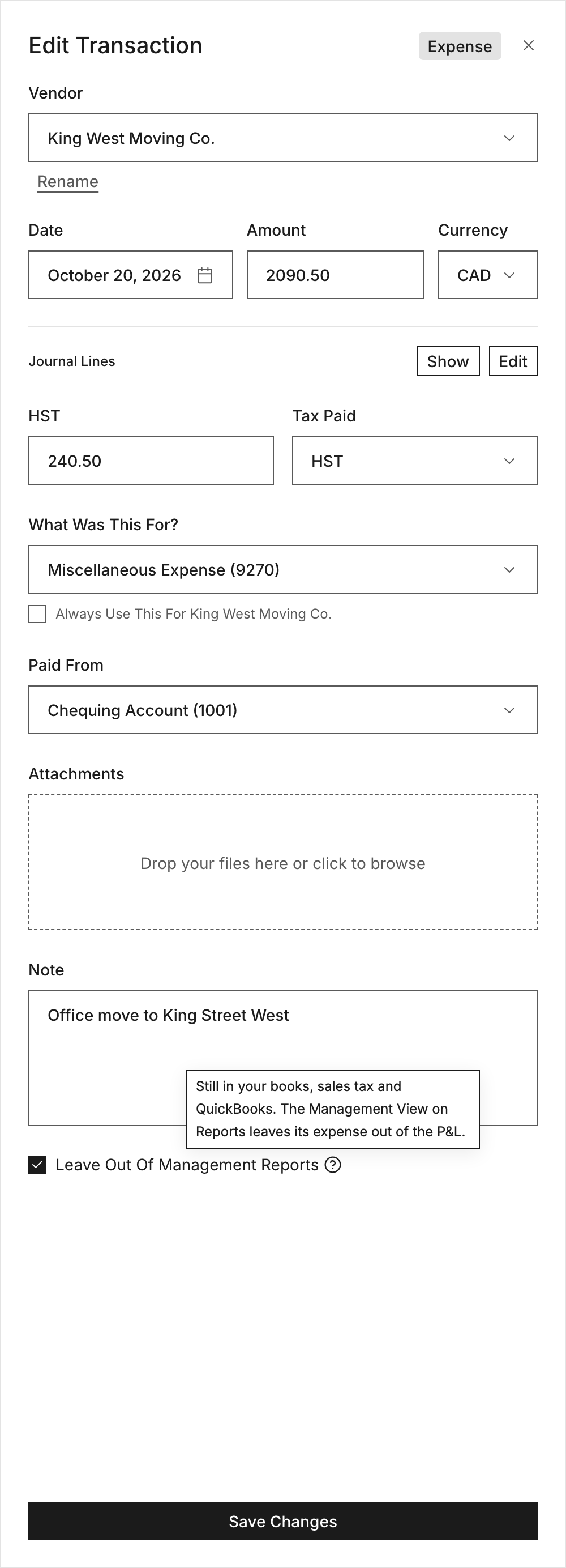
2. Tick Leave Out Of Management Reports
Below the Note field, tick Leave Out Of Management Reports. Solarium saves it right away and shows “Left Out Of Management Reports”. Untick it any time to put it back.
The help tip next to it says it plainly: the transaction is still in your books, sales tax and QuickBooks. The Management View on Reports leaves its expense out of the P&L.
3. Switch Reports To Management View
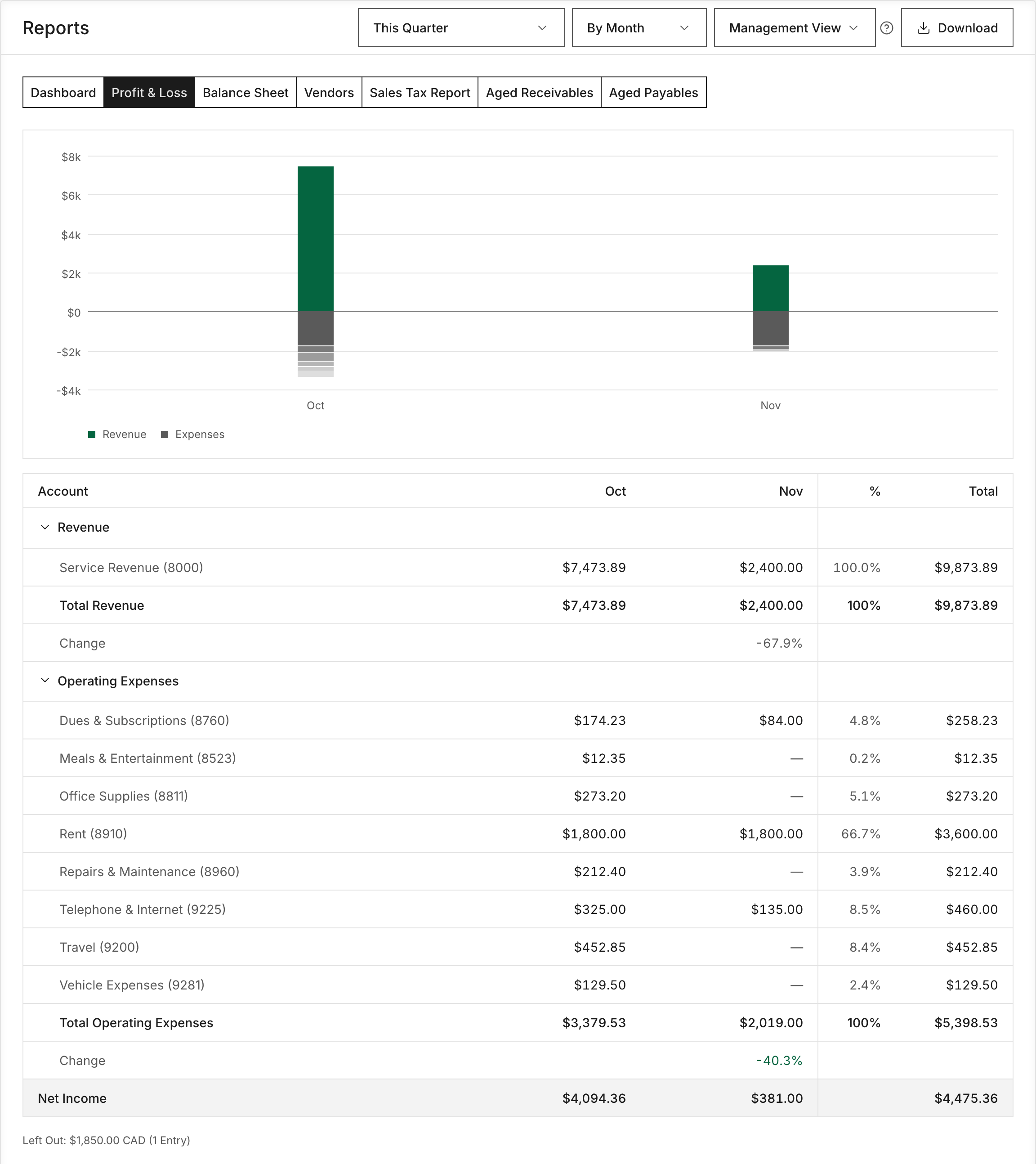
Go to Reports and open Profit & Loss or Vendors. In the header, change All Entries to Management View.
Solarium now leaves out the income and expenses of every transaction you marked. The view is kept in the page address, so a link you share opens the same view.
4. See What Was Left Out
Under the Profit & Loss table, Solarium tells you what it took out, like “Left Out: $4,800.00 (1 Entry)”. Nothing is hidden without saying so.
5. Switch Back For Anything Official
When you’re preparing taxes or sending numbers to your accountant, switch back to All Entries. That’s the full picture, and it’s what gets filed.
What Happens Next
Your marked transactions stay marked. Each time you open Profit & Loss or Vendors in Management View, they’re left out. Everywhere else counts them as usual:
- The Balance Sheet and Dashboard always show every entry.
- The Sales Tax Report always counts their GST/HST.
- Downloads always include every entry.
- QuickBooks Online is never changed.
Troubleshooting
- The checkbox is greyed out. You’re looking at a transaction you can’t edit, like one only Solarium bookkeepers can change. Ask the Solarium team.
- The Profit & Loss didn’t change. Check that the header says Management View, not All Entries. The view only appears on the Profit & Loss and Vendors tabs.
- The Dashboard still shows the cost. That’s by design. The Dashboard always counts every entry.
Ask Your AI
In Claude, connected to Solarium, your AI can mark transactions and run reports in either view. It previews the change first. In ChatGPT, your AI can read reports in Management View, but marking transactions isn’t available there yet.
- “Leave the office move on June 12 out of my management reports.”
- “Show my Profit & Loss for this year in the management view.”
- “Put the June 12 office move back in my management reports.”
Common Questions
Does The Management View Change My Books? +
No. A marked transaction stays in your books, your sales tax, your balance sheet and QuickBooks. Only the Profit & Loss and Vendors reports leave it out, and only while Management View is picked.
Is The Management View What I File With The CRA? +
No. What you file comes from All Entries, which counts everything. The Management View is for running the business, not for tax.
Should I Use It For Personal Spending On The Business Card? +
It's best to keep personal spending off the business card. If it happens, book it properly, then you can leave it out of your management numbers too. The handbook entry on mixing personal and business spending explains what to do.
Do Downloads Use The Management View? +
No. The Excel and CSV downloads always count every entry, so the files you send your accountant are complete.