
Connect Stripe
Connect Stripe to Solarium, choose where charges, fees and payouts go, and bring each day of Stripe activity into review, tied to Stripe's own numbers.
A Stripe payout isn’t your sales. It’s a batch of charges, minus Stripe’s fees and any refunds. Connect Stripe and Solarium books each piece the right way, so your sales, fees and bank all agree with Stripe. This guide shows you how to connect, choose your accounts and bring your activity in.
Before You Start
- Any plan. Every plan can connect Stripe and press Sync Now. The nightly sync runs on Essentials and Done For You.
- Your Stripe login, for the account your business gets paid through.
- Activity in your home currency. Solarium can’t bring in Stripe activity in another currency yet.
- Your bank connected, ideally. Then Solarium can link each payout to its deposit. See Connect Your Bank.
Steps
1. Start The Connection
Go to Settings, then Integrations. Under Stripe Connection, click Connect.

2. Approve At Stripe
You’re sent to approve the connection and sign in to Stripe. When you come back, Solarium says “Stripe is connected. Choose where its activity goes.”
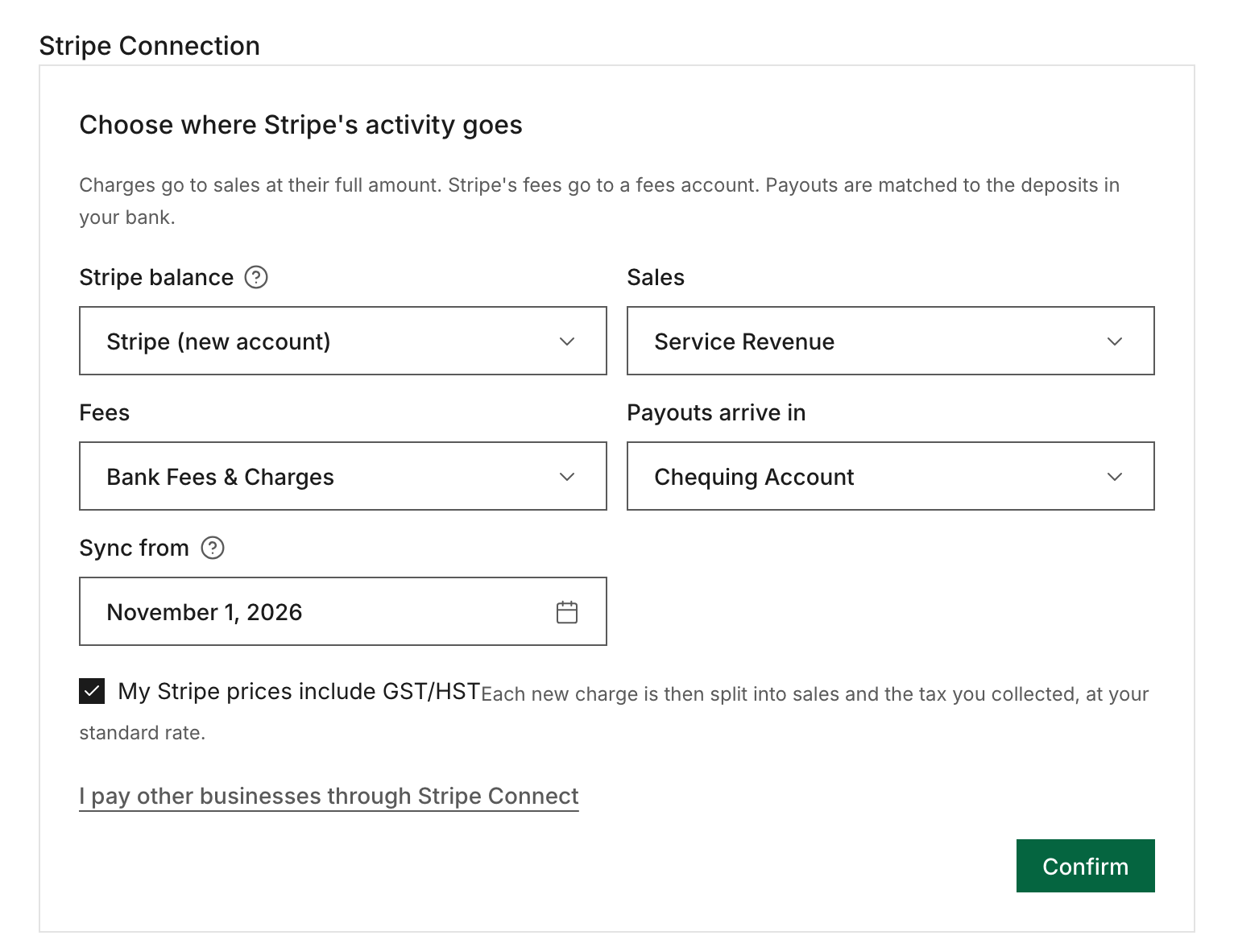
3. Choose Where Stripe’s Activity Goes
Solarium proposes an account for each part. Change any of them, then check the rest:
- Stripe balance: works like a bank account, and its balance should match Stripe’s. Pick Stripe (new account) to have Solarium create it.
- Sales: where your charges go.
- Fees: where Stripe’s fees go. Pick Merchant Fees (new account) to have Solarium create it.
- Payouts arrive in: the bank account Stripe pays you into.
- Sync from: the first day of Stripe activity to add. Usually the first day your books are open.
If your Stripe prices already include GST/HST, tick My Stripe prices include GST/HST. Each new charge is then split into sales and the tax you collected, at your standard rate. If you pay other businesses through Stripe Connect, click I pay other businesses through Stripe Connect and pick an account for Transfers to connected accounts.
Click Confirm. Solarium says “Stripe is fully connected to Solarium.”
For our example, Riio Systems Inc. takes card payments for support plans through Stripe, with HST included in its prices. The owner keeps Stripe (new account) and Merchant Fees (new account), picks Consulting Revenue for Sales and Chequing for Payouts arrive in, sets Sync from to November 1, and ticks My Stripe prices include GST/HST.
4. Bring In Your Activity
On the Stripe card, click Sync Now. Solarium brings in whole days of Stripe activity through yesterday, and says something like “Stripe synced. 12 new transactions in Needs Review.”
5. Review And Confirm
Open Review. The Stripe transactions are in Needs Review. Check them and click Confirm on each, the same as any other transaction. See Review And Confirm Transactions.
6. Change Your Accounts Later
The Stripe card lists the accounts you chose and whether charges include sales tax. Click Change accounts to update them.
What Happens Next
Here’s how Solarium books Stripe:
- Charges go to sales at their full amount, or split into sales and GST/HST if you ticked the box.
- Stripe’s fees go to your fees account. Where Stripe charged sales tax on its fees, that tax is booked as an input tax credit.
- Refunds and disputes come off sales.
- Payouts move money from your Stripe balance to your bank. If the deposit is already on your bank feed, Solarium links to it.
- Nothing twice. A Stripe charge or payout already in your books is skipped.
Solarium also checks itself against Stripe’s own net for those days. If they don’t agree, it warns you to check before confirming, and those transactions carry a note.
On Essentials and Done For You, a nightly sync brings in each new day. On Done For You, the Solarium team reviews and confirms your Stripe activity.
Troubleshooting
- “Stripe Has Activity In USD, Not CAD: Solarium Can’t Bring That In From Stripe Yet.” Solarium only brings in Stripe activity in your home currency for now.
- Stripe Connect transfers. If Solarium says to choose where transfers to connected accounts go, click Change accounts and pick one.
- “A Stripe Sync Is Already Running For This Business.” Wait a minute and try again.
- The card asks you to connect again. Stripe access was revoked or expired. Click Connect and approve it again. Your past Stripe activity stays in your books.
Ask Your AI
In Claude:
- “Give me the link to connect Stripe to Solarium.”
- “Sync Stripe and tell me what came in.”
- “Here’s my Stripe balance summary export for October. Import it and show me the preview first.” (attach the CSV files)
Stripe connecting, syncing and imports aren’t in ChatGPT yet.
Common Questions
Can Solarium Move Money In My Stripe Account? +
No. Solarium only reads your Stripe account. It brings in your charges, fees, refunds and payouts, and never changes anything in Stripe.
Will The Payout Be Counted Twice With My Bank Feed? +
No. Solarium books the payout as money moving from your Stripe balance to your bank. If the deposit is already on your bank feed, Solarium links to it instead of booking it again.
Which Plans Can Connect Stripe? +
Any plan can connect Stripe and use Sync Now. The automatic nightly sync runs on Essentials and Done For You.
Can I Import A Stripe File Instead? +
Yes. Export the Balance summary report from Stripe and ask your AI in Claude to import it. Solarium shows a preview and only books it when it ties to Stripe to the cent.