
Send Invoice Reminders Automatically
Solarium can email your customers payment reminders before and after an invoice is due. Here is how to set the default and turn reminders off on one invoice.
Chasing payments is nobody’s favourite job. Solarium can send polite email reminders for you, on a fixed schedule, until the invoice is paid. You set the default once and can switch reminders off for any single invoice.
Before You Start
- Reminders work on every Solarium plan, for invoices you send from Solarium.
- Your customer needs an email address on file. Solarium uses the same addresses it sends their invoices to.
- Record payments as they come in. Reminders follow the balance Solarium sees, so an unrecorded payment still looks owed.
Steps
1. Choose The Default For New Invoices
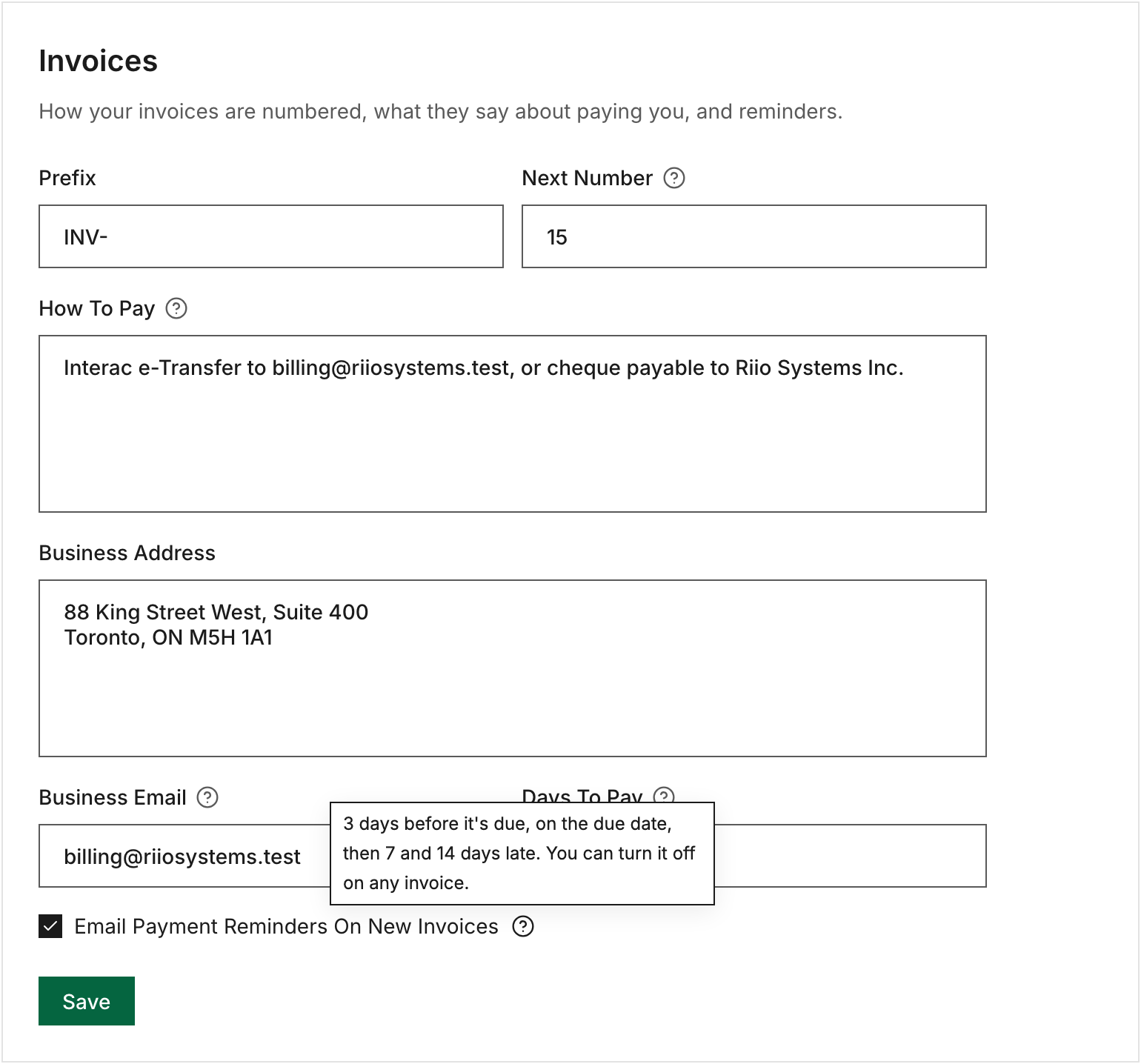
Go to Settings, then Invoices. Tick Email Payment Reminders On New Invoices to have reminders on for every new invoice, or untick it to start them off. Click Save.
The default only applies to invoices you create from now on. Invoices that already exist keep their own setting.
2. Send The Invoice
Make and send your invoice as usual. See Create And Send An Invoice. Reminders only start once an invoice is sent. A draft never gets one.
3. Turn Reminders Off Or On For One Invoice
Go to Invoices and click the invoice to open it. Near the bottom of the panel, tick or untick Email Payment Reminders. Solarium saves the change right away.
This checkbox shows on any invoice that still has money owing. Riio Systems Inc. turns reminders off for a long-time client who always pays on the 15th, and leaves them on for everyone else.
4. Watch The Activity
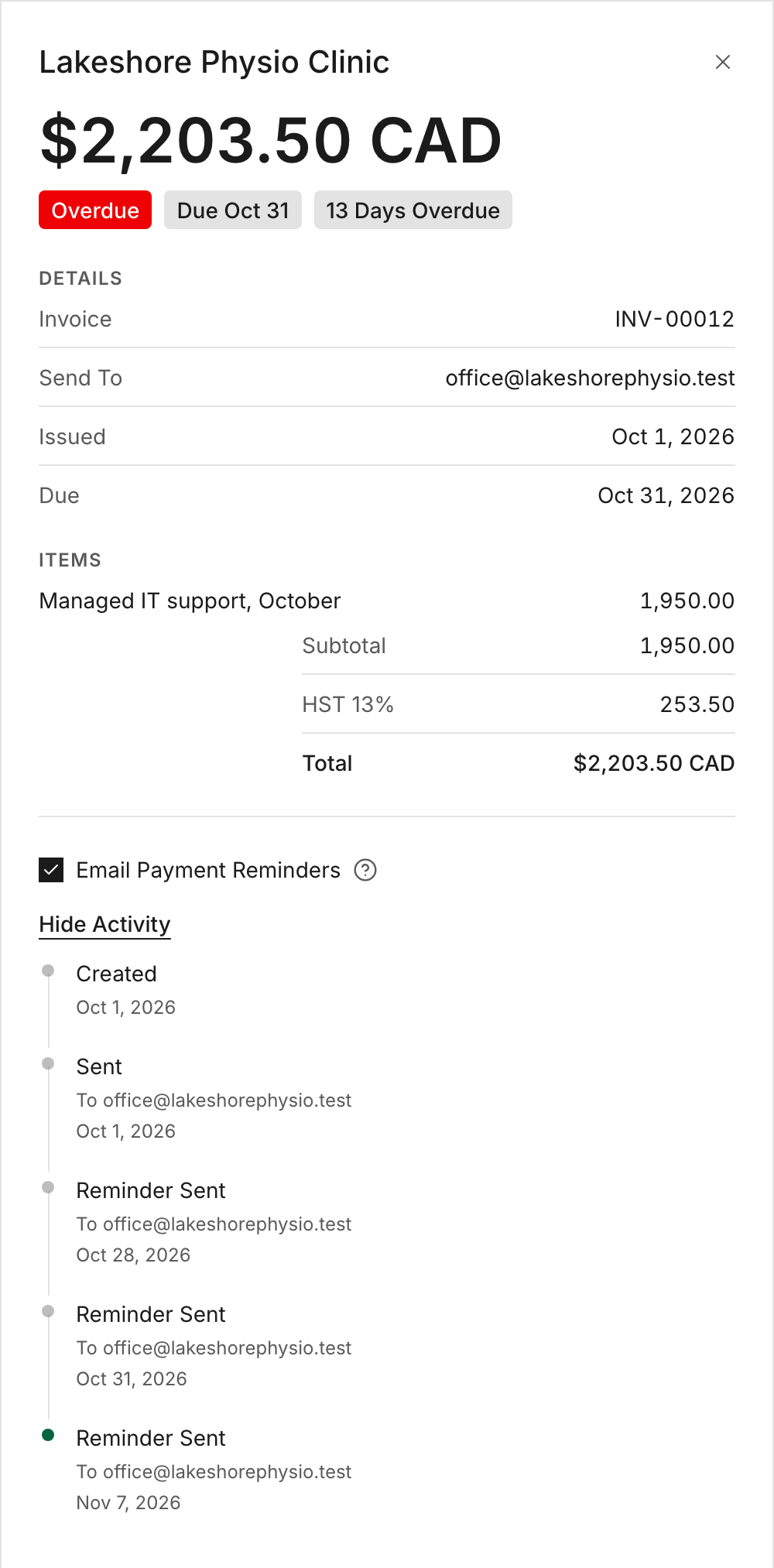
At the bottom of the invoice panel, click Show Activity. Each reminder Solarium sends is listed there as Reminder Sent with its date, next to Sent and Viewed By The Customer. That way you always know who was reminded and when.
What Happens Next
Once a day, Solarium checks every open invoice. It marks invoices whose due date has passed as Overdue. Then it sends any reminder that’s due today:
- 3 days before the due date: “A friendly reminder: invoice RIIO-0042 from Riio Systems Inc. is due in 3 days.”
- On the due date: the invoice “is due today.”
- 7 days after: the invoice “is 7 days past due.”
- 14 days after: the invoice “is 14 days past due.”
Each reminder email has “Reminder:” in the subject, shows the amount still due, links to the invoice and attaches the PDF. After the 14-day reminder, Solarium stops. Anything still unpaid stays on your Aged Receivables report under Reports.
Troubleshooting
- A customer didn’t get a reminder. Check that the invoice is sent, still has a balance, and has Email Payment Reminders ticked. Also check the customer has an email address.
- A reminder went out after the customer paid. Record the payment on the invoice with Record Payment. Reminders stop once the balance is zero.
- You changed the default but an old invoice still sends reminders. The default only applies to new invoices. Untick Email Payment Reminders on that invoice.
- You’re in the sample business. A sample business never emails anyone, so no reminders go out.
Ask Your AI
In Claude, connected to Solarium, your AI can change reminder settings for you. In ChatGPT, your AI can switch reminders on one invoice, but changing the default isn’t available there yet.
- “Turn off payment reminders on invoice RIIO-0042.”
- “Turn reminders on by default for new invoices.”
- “Did Solarium send a reminder on invoice RIIO-0042 yet?”
Common Questions
When Do Reminders Go Out? +
Three days before the due date, on the due date, then 7 and 14 days after it, while money is still owed. Each one is sent once at most.
Do Reminders Stop When The Customer Pays? +
Yes. Reminders only go out on invoices that still have a balance. Once you record the full payment, the invoice is Paid and no more reminders are sent.
Can I Change The Reminder Schedule? +
Not today. The schedule is fixed at 3 days before, the due date, and 7 and 14 days late. You choose whether each invoice gets reminders.
Who Do Reminders Go To? +
The same addresses the customer's invoices go to. Replies reach your Business Email from Settings, Invoices.