
Sync With QuickBooks Online
Connect QuickBooks Online to Solarium, bring in your history, map your accounts, and keep both sides in step so your accountant can stay in QuickBooks.
If your accountant works in QuickBooks Online, you don’t have to choose. Connect QuickBooks to Solarium and the two stay in step. You review and confirm in Solarium, and your accountant sees the result in QuickBooks with the receipt attached.
Before You Start
- Essentials or Done For You. The free Essentials trial includes QuickBooks sync. The Free plan doesn’t.
- A QuickBooks Online login that can connect apps to the company.
- The right company. If these Solarium books already came from a QuickBooks company, connect that same company.
Steps
1. Start The Connection
Go to Settings, then Integrations. Under QuickBooks Connection, click Connect. During setup, click I Use QuickBooks on the bank step, then Connect QuickBooks.

2. Sign In At Intuit
You’re sent to Intuit. Sign in, pick the QuickBooks company, and let Solarium connect. Solarium never sees your Intuit password. You come back to Solarium with the message “QuickBooks is connected.”
3. Let The History Import
The QuickBooks card says “Bringing in your QuickBooks history. This can take a few minutes.” Solarium brings in your chart of accounts, your vendors and customers, and your transactions from January 1 of last year onward. If a QuickBooks expense or bill has a receipt attached, Solarium downloads it too. You can keep using Solarium while it runs.
For our example, Riio Systems Inc. connects in November 2026. Solarium brings in everything from January 1, 2025, so both tax years are in one place.
4. Map Your Accounts
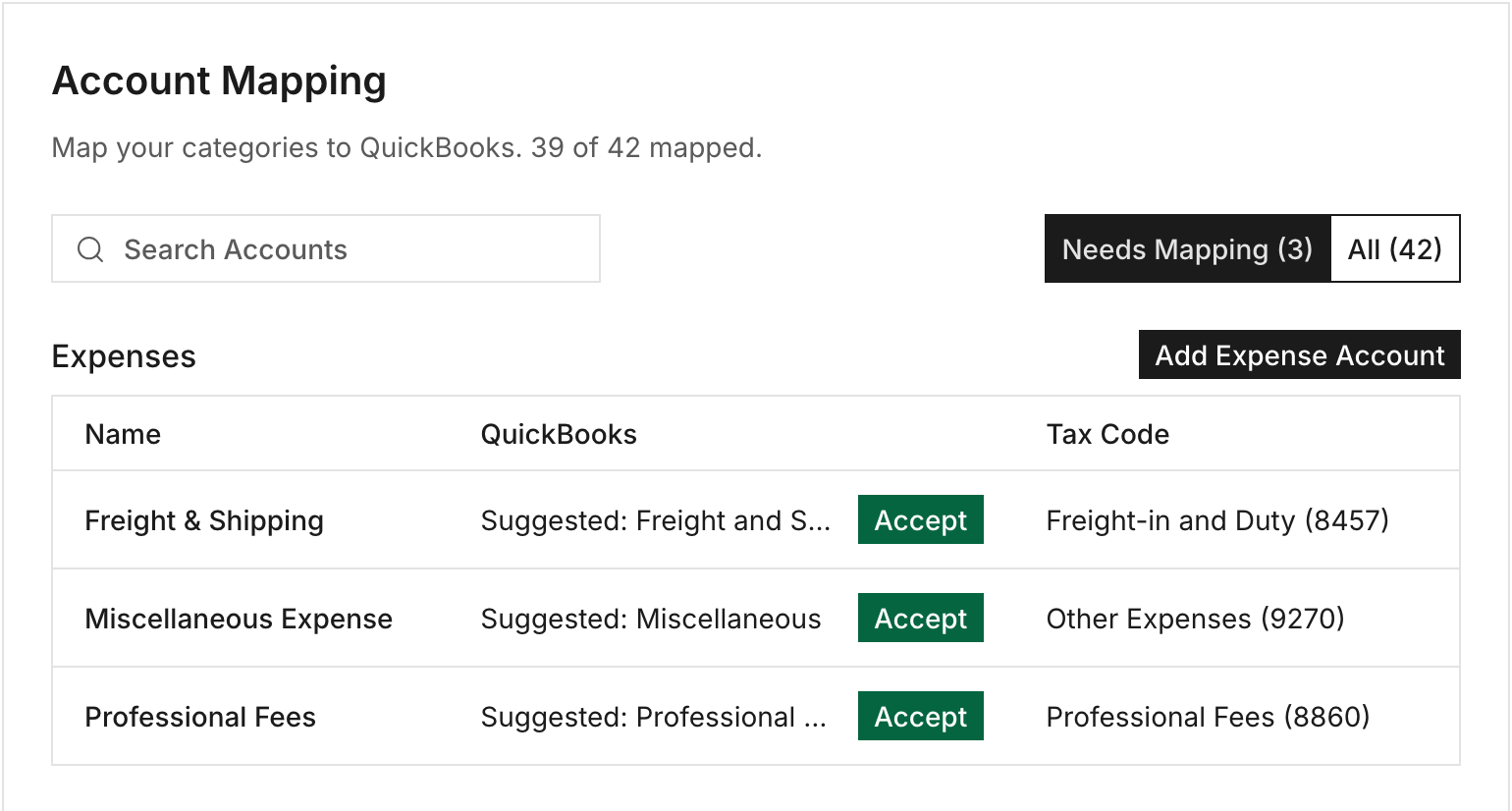
Every Solarium category and payment account needs a matching QuickBooks account before transactions can sync. Go to Settings, then Account Mapping. The Needs Mapping tab lists what’s left, and the top of the page shows how many are mapped.
- Where Solarium shows Suggested: with a QuickBooks account name, click Accept if it’s right.
- Otherwise, click the row and pick the QuickBooks account.
Cards and bank accounts are mapped in Settings, Cards & Banks. If anything is unmapped, Review shows a banner with Map Categories and Map Cards & Banks buttons that take you to the right page.
5. Confirm Transactions As Usual
Review and confirm in Review the same way you always do. When you confirm, Solarium sends the transaction to QuickBooks with its receipt attached. Expenses go across as expenses, and income and transfers go across as journal entries. Open a synced transaction and click View in QuickBooks to see it there.
6. Sync Now When You Need To
Every night, Solarium brings in what changed in QuickBooks since the last sync: new transactions, edits, voids and deletions. To pull changes right away, click Sync Now on the QuickBooks card. Solarium tells you how many changes came in, or “QuickBooks synced. Nothing new.”
What Happens Next
The sync runs both ways. What you confirm in Solarium goes to QuickBooks. What your accountant enters in QuickBooks comes into Solarium overnight. A QuickBooks transaction Solarium can’t place on one of your accounts lands in your Review Inbox for you to check, instead of being guessed.
Solarium also guards against doubles. When a bank charge comes in, Solarium checks it against what it already brought in from QuickBooks and links to that copy instead of adding a second one. If the same account is fed by both your bank and QuickBooks, Cards & Banks shows Coming In Twice.
Troubleshooting
- “QuickBooks sync is part of Essentials. Upgrade in Settings → Billing to connect QuickBooks.” You’re on the Free plan. Upgrade in Settings, Billing.
- “This is a different QuickBooks company than the one these books came from.” Connect the original company, or contact the Solarium team to switch.
- “QuickBooks stopped letting Solarium in. Reconnect to keep your books in sync.” Click Reconnect on the QuickBooks card and sign in at Intuit again.
- “Your QuickBooks history didn’t finish importing.” The Solarium team is told automatically and will sort it out.
- “Map The Account Above To QuickBooks To Confirm.” Pick the QuickBooks account right in the transaction drawer, or map it in Account Mapping.
- A transaction is in Errors with “QuickBooks Sync Failed”. Open it to read why. Mapping or reconnecting QuickBooks fixes most of these.
Ask Your AI
In Claude:
- “Give me a link to connect QuickBooks to Solarium.”
- “Sync QuickBooks now and tell me what came in.”
- “Compare Solarium with QuickBooks account by account as of today.”
- “Map my Solarium Software category to the QuickBooks Software account.”
QuickBooks connecting, syncing and comparing aren’t in ChatGPT. Confirming in ChatGPT still sends the transaction to QuickBooks.
Common Questions
Do I Have To Stop Using QuickBooks? +
No. Solarium works alongside QuickBooks Online. Your accountant keeps working in QuickBooks, and what you confirm in Solarium shows up there with its receipt.
What Does Solarium Bring In From QuickBooks? +
Your chart of accounts, vendors and customers, and your transactions from January 1 of last year onward. If your books are closed through a date, the import starts the day after.
Which Plans Include QuickBooks Sync? +
Essentials, the Essentials trial and Done For You. The Free plan doesn't include QuickBooks sync.
What Happens If I Disconnect? +
Solarium stops syncing and clears all your account mappings. If you reconnect later, you'll need to map every account again.