
Invite Your Team And Accountant
Invite a teammate or your accountant to your Solarium books by email, choose Bookkeeper or Admin, and manage pending invites from Settings, Team.
Your books are easier to keep when the right people can see them. In Solarium, you invite a teammate or your accountant by email, and they get their own login to the same books.
Before You Start
- Team invites work on every Solarium plan.
- You need to be the owner or an admin of the business in Solarium.
- Have the person’s email address. They’ll sign in with it, so use the one they’ll actually check.
- Decide on a role. Bookkeeper can work in the books. Admin can also invite people, change tax settings, manage API keys and disconnect integrations. You can’t invite someone with a higher role than yours.
Steps
1. Open Team Settings
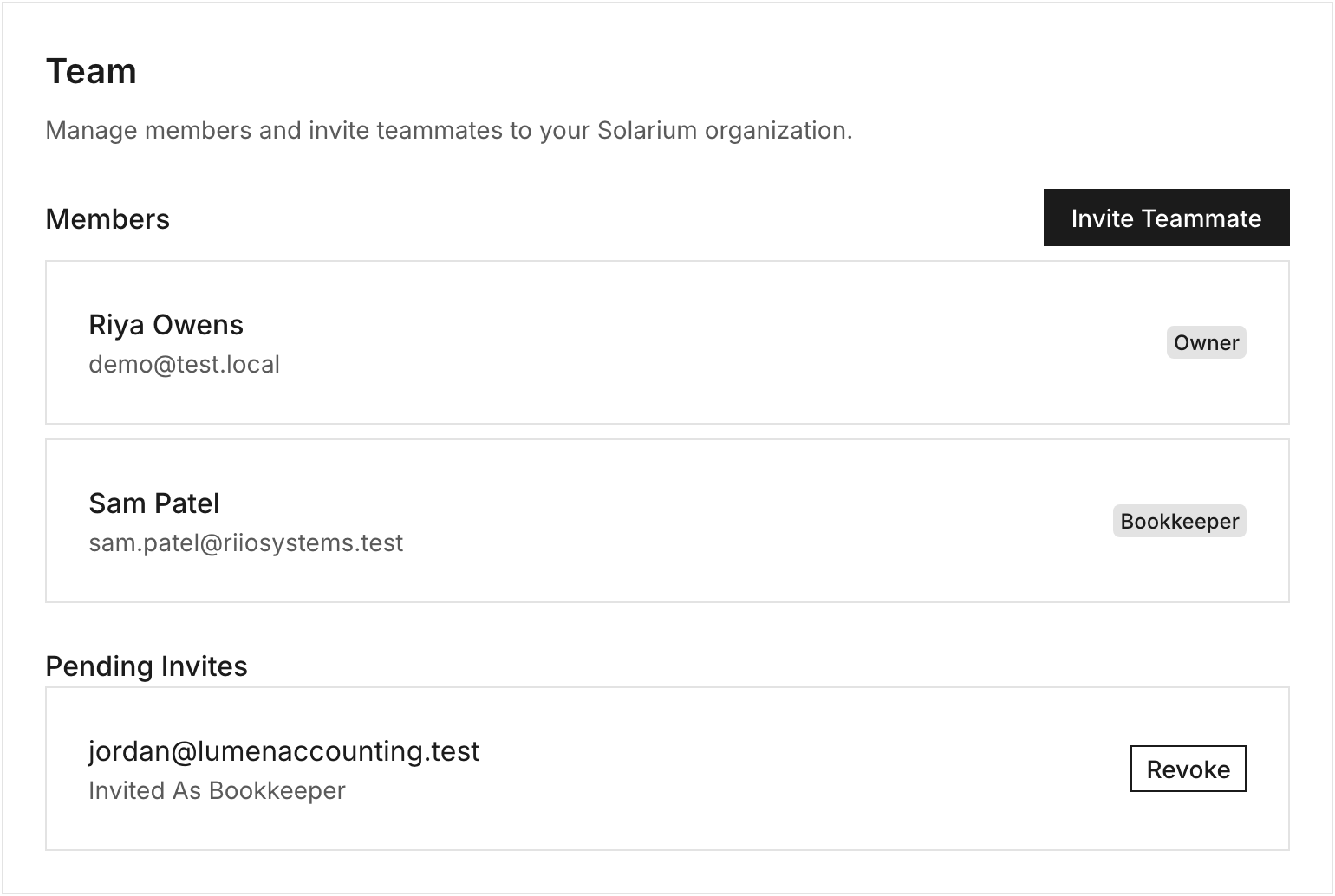
Click Settings, then Team. You’ll see everyone under Members, each with their role.
2. Click Invite Teammate
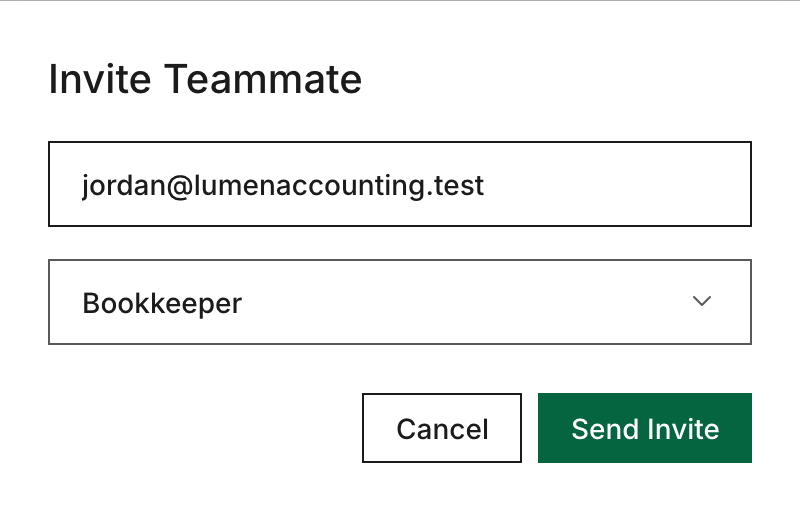
Click Invite Teammate. A dialog opens.
3. Enter Their Email And Role
Type their email. In the menu below it, pick Bookkeeper or Admin. The first invite starts on Bookkeeper. If you send several in a row, check the role each time before you send. Riio Systems Inc. invites its accountant, Priya, as a Bookkeeper.
4. Send The Invite
Click Send Invite. Solarium shows “Invite Sent To” with their email, and they appear under Pending Invites with the role you picked.
5. They Accept
They get an email titled “You’ve been invited to Riio Systems Inc. on Solarium” with an Accept Invitation button. Clicking it opens Solarium:
- New to Solarium? They create an account with the invited email, confirm it with a code, and land in your books.
- Already have an account? They log in, and the invite is accepted right away.
You get an email when they join. They now show under Members.
What Happens Next
Your teammate sees the same books you do: Review, Transactions, Reports and Invoices. Each person has their own login, so you never share a password.
For an accountant at year end, pair the invite with a download. On Reports, click Download and pick the Excel file for the year. The handbook’s handoff to your accountant covers what else they’ll ask for.
Troubleshooting
- “A Solarium invite has already been sent to this email.” There’s a live invite for them under Pending Invites. Ask them to check their inbox and spam folder. Once it expires after 7 days, you can send a new one.
- “This person is already a member of this Solarium organization.” They’re already in. Look under Members.
- “You cannot invite someone to Solarium with a higher role than yours.” Ask the owner to send the invite.
- “Too many invites sent on Solarium. Try again in an hour.” A business can send up to 20 invites an hour.
- “This invite is for … You’re signed in as …” They opened the link while signed in with another email. They should log out and switch accounts, then open the link again.
- “This invitation to Solarium has expired.” Send them a new invite.
To cancel an invite before it’s accepted, click Revoke next to it under Pending Invites. To remove a member or change their role, message the Solarium team. There’s no button for that on the Team page yet.
Common Questions
Which Role Should My Accountant Get? +
Bookkeeper suits most accountants. They can work in your books and reports. Admin adds team invites, tax settings, API keys and disconnecting integrations, so save it for someone you'd trust with those.
Does Inviting Someone Cost Extra? +
No. Solarium plans are priced per business, not per person, and inviting a teammate doesn't change your bill.
How Long Does An Invite Last? +
Seven days. If it runs out, send a new invite to the same email from Settings, Team. The old one is replaced.
Can My Accountant Get My Reports Without An Account? +
Yes. On the Reports screen, click Download and pick the Excel file. It holds every report for the dates you choose in one workbook you can email.