
Review And Confirm Transactions
Use the Review Inbox to check each transaction's vendor, category, account, sales tax and receipt, then confirm it into your books in a few clicks.
Every transaction that comes into Solarium waits for your check before it’s booked. This guide walks through the Review Inbox, what each tag means, and how to confirm, fix or reject a transaction.
Before You Start
- Any plan. Review works the same on Free and Essentials. On Done For You, the Solarium team does this for you.
- Something to review. Transactions come from your bank feed, receipts you send, QuickBooks, Stripe, or ones you add yourself.
Steps
1. Open The Review Inbox
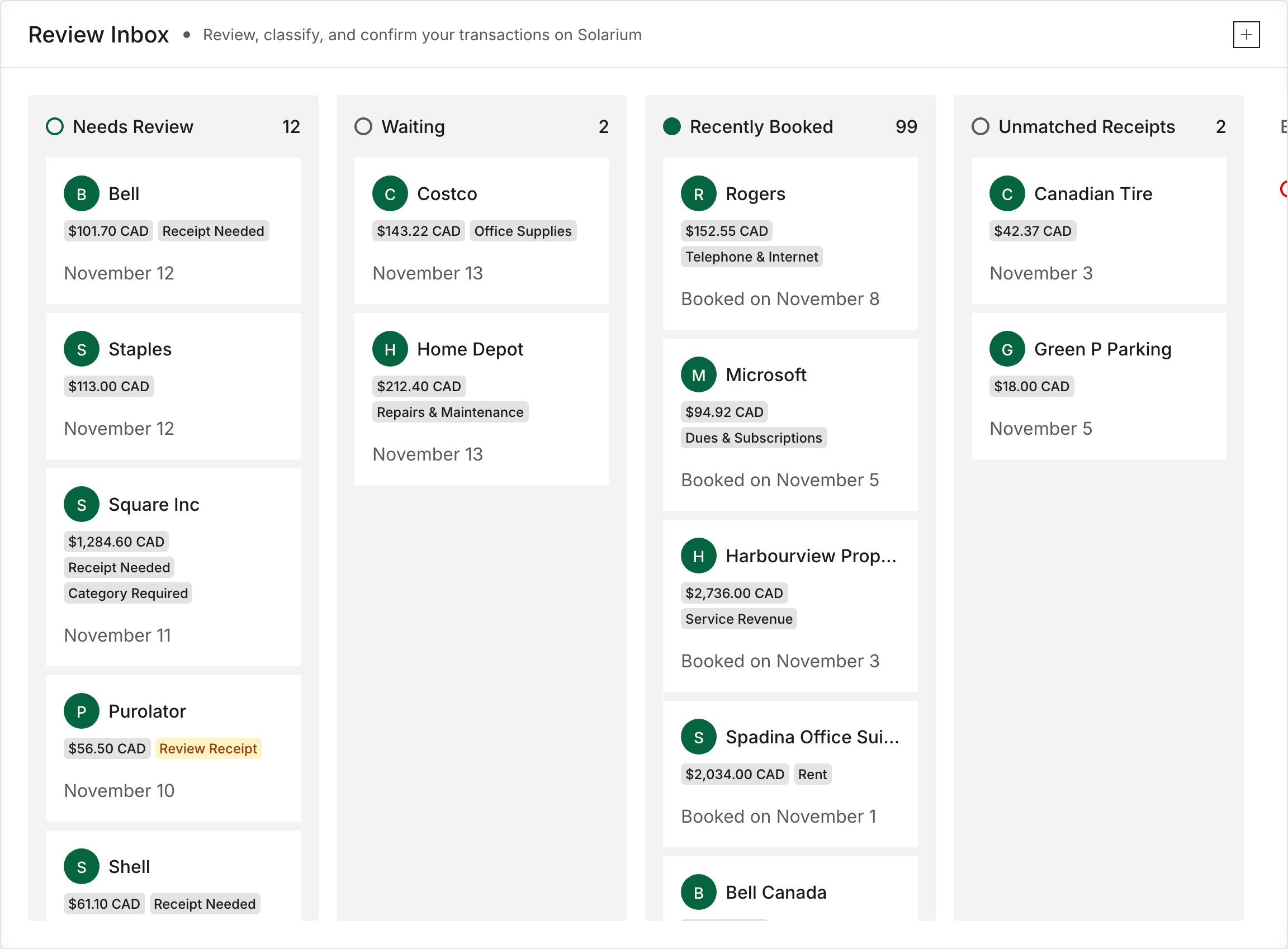
Click Review in the menu. The Review Inbox sorts your transactions into columns:
- Needs Review: ready for you to check and confirm.
- Errors: something stopped it from booking or syncing.
- Waiting: pending bank charges that haven’t posted yet.
- Recently Booked: what was confirmed in the last 7 days.
- Unmatched Receipts: receipts with no charge to match yet.
A column with nothing in it is hidden. Each card shows tags that tell you what it needs, like Category Required, Payment Required, Receipt Needed, Review Receipt or Possible Duplicate.
2. Open A Transaction
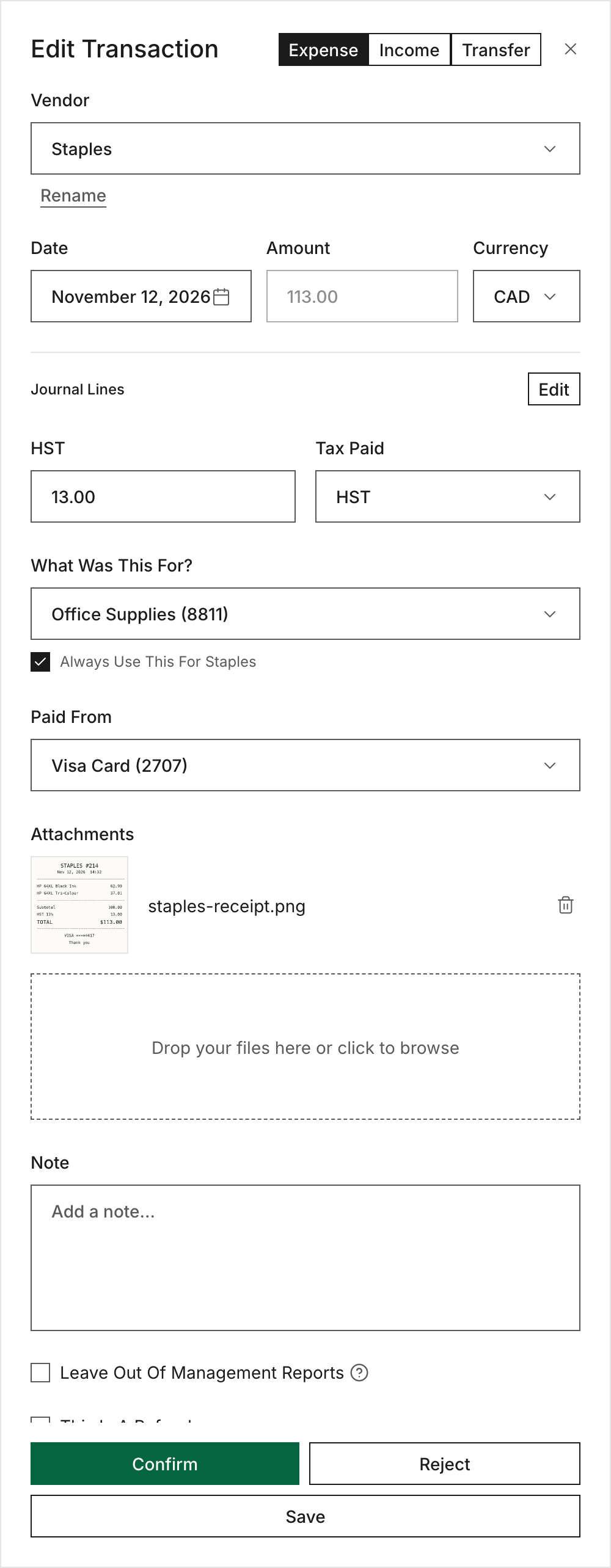
Click a card. The Edit Transaction drawer opens. At the top right, check the type: Expense, Income or Transfer. If money came back from a vendor, tick This Is A Refund.
3. Check The Vendor
The Vendor field shows who you paid, with what the bank said underneath. Pick a different vendor from the list, or choose New Vendor… to add one. Click Rename to give this one transaction a clearer title.
4. Pick The Category
Under What Was This For?, pick the category. For income, the field is What Is This Income From?. Solarium often fills this in already from how you booked the vendor before. If the category you need isn’t there, click Add New Category at the bottom of the list.
5. Pick The Account
Under Paid From (or Deposited To for income), pick the card or bank account the money moved through.
6. Check The Sales Tax
Solarium reads the tax printed on the receipt and puts it in the tax field, labelled Tax Paid on an expense or Tax Collected on a sale. This is the GST/HST you can claim back as an input tax credit, or the tax you owe. Make sure it matches the receipt.
For our example, Riio Systems Inc. bought printer toner for $113.00 and the receipt shows $13.00 of HST. The drawer shows $13.00 as tax paid, and Solarium books $100.00 to Office Supplies.
7. Check The Receipt
Under Attachments, you’ll see any receipt Solarium matched. If it says “Receipt matched automatically by Solarium, confirm it’s correct before booking.”, open it and make sure it’s the right one. To add a receipt yourself, drop the file in the box. See Match Receipts To Transactions.
8. Confirm, Save Or Reject
Click Confirm to book it. The card moves to Recently Booked. Not sure yet? Click Save to keep your edits without booking. Click Reject for anything that doesn’t belong in the business’s books, like a personal charge.
If Confirm is greyed out, the reason shows just above it, like “Pick A Category To Confirm.”
9. Handle A Possible Duplicate
If a card says Possible Duplicate, the drawer shows what it looks like. If it’s the same transaction, click Merge Into Original, check the two side by side, and click Merge. If it’s the other side of a transfer you already booked, click Reject.
10. Fix Something After Booking
Open the transaction from Recently Booked or Transactions, change what you need and click Save Changes.
What Happens Next
When you confirm, Solarium writes the journal entry, which is the debit and credit record behind the transaction. It also remembers the category you picked for that vendor and suggests it next time. If you sync with QuickBooks, the transaction and its receipt go to QuickBooks too.
Troubleshooting
- “Map The Account Above To QuickBooks To Confirm.” The category or account isn’t linked to a QuickBooks account yet. Pick the QuickBooks account right there in the drawer, or map it in Settings, Account Mapping.
- A card is in Errors. Open it and read the banner at the top, like “Couldn’t Sync To QuickBooks” or “Couldn’t Book This Transaction”. It says what went wrong. If QuickBooks needs reconnecting, do that in Settings, Integrations.
- Closed Period. The transaction falls in a period whose books are closed. Confirming it changes your filed return for that period, so check with your accountant first.
Ask Your AI
In Claude or ChatGPT:
- “What’s waiting for review in Solarium? Group it by vendor.”
- “Categorize the three Shell charges as Fuel, paid from the Riio Visa, and show me before you save.”
- “Confirm the Staples toner purchase.”
In Claude, you can also ask it to confirm everything that’s high confidence, after it shows you the list.
Common Questions
What Does Confirm Actually Do? +
Confirm books the transaction. Solarium writes the journal entry, remembers the category you chose for that vendor, and sends it to QuickBooks if you sync with QuickBooks.
Can I Change A Transaction After I Confirm It? +
Yes. Open it from Recently Booked or Transactions, make the change and click Save Changes. Solarium re-posts the entry, and updates QuickBooks if it's synced.
What Does Reject Do? +
Reject takes a transaction out of your books, like a personal charge or a duplicate. It isn't deleted. Solarium keeps a record of it for the audit trail.
Do I Have To Review Everything Myself? +
On Free and Essentials, yes, or your AI can do it with you. On Done For You, the Solarium team reviews and confirms your transactions.