
Connect Solarium To Claude
Add Solarium to Claude as a custom connector, sign in, choose what Claude may do, and start asking about your books in plain words. No API key needed.
Connect Solarium to Claude and you can ask about your books in plain words, and have Claude book and fix things with you. This guide shows you how to add the connector, what to pick when you sign in, and how to check it worked.
Before You Start
- A Solarium account. If you don’t have a business in Solarium yet, that’s fine. Claude can set it up with you in the chat after you sign up.
- A Claude account that can add custom connectors.
- Any Solarium plan. Free includes 200 AI app calls a month. Essentials and Done For You have no limit.
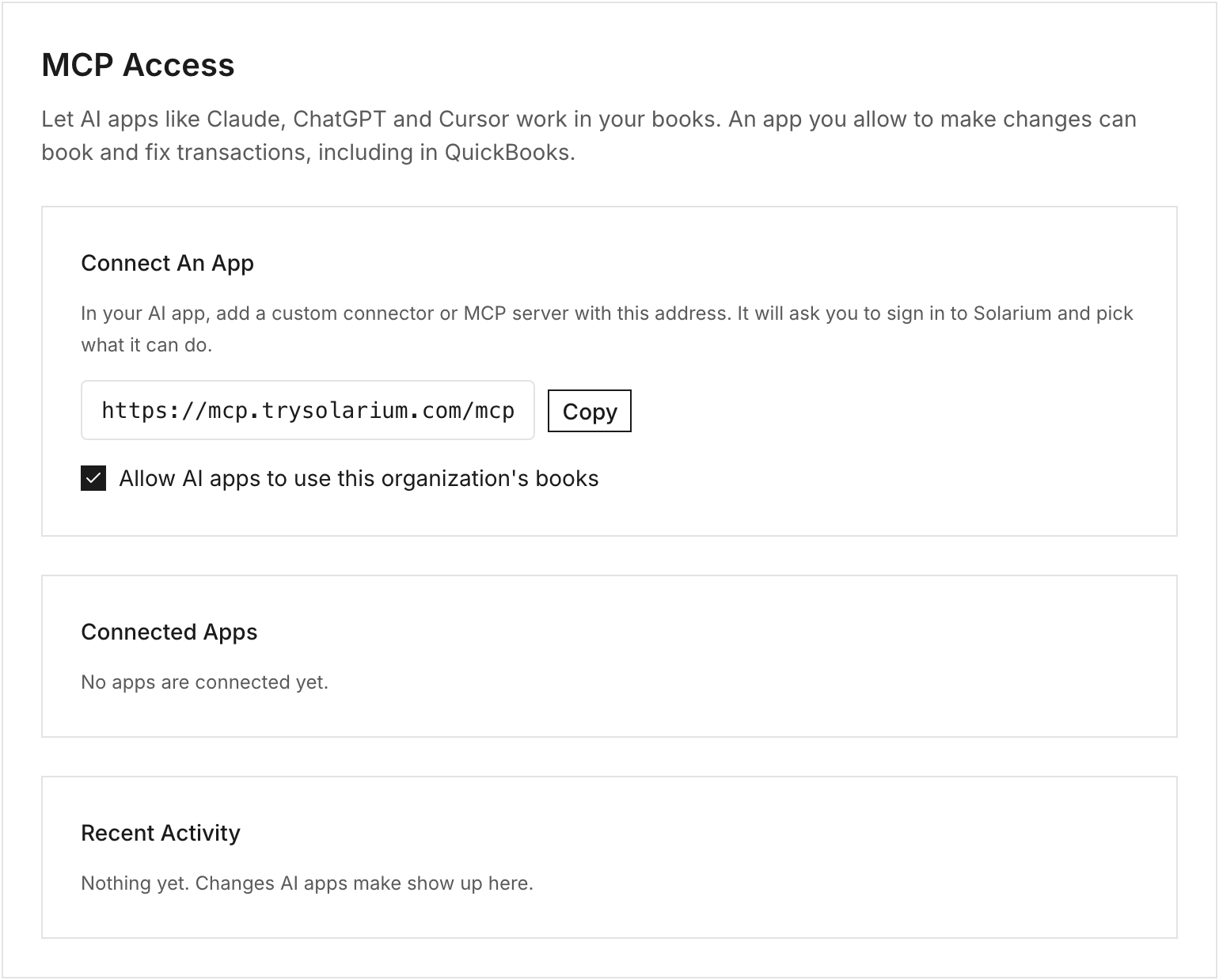
- The Solarium address: https://mcp.trysolarium.com/mcp
Steps
1. Copy Your Solarium Address
In Solarium, go to Settings, then MCP Access. Under Connect An App, click Copy next to the address. During setup, the Connect Your AI step shows the same address, with an Open Claude Connectors button that takes you straight to the next step.
2. Add Solarium As A Custom Connector
In Claude, open Customize, then Connectors. You can go there directly at claude.ai/customize/connectors. Choose Add custom connector, paste https://mcp.trysolarium.com/mcp as the address, and click Add.
3. Sign In To Solarium
Claude sends you to Solarium. If you’re not signed in, sign in with your email and password and the code Solarium texts you. If you don’t have an account yet, sign up first and you’ll come back here.
4. Choose Your Business And Access
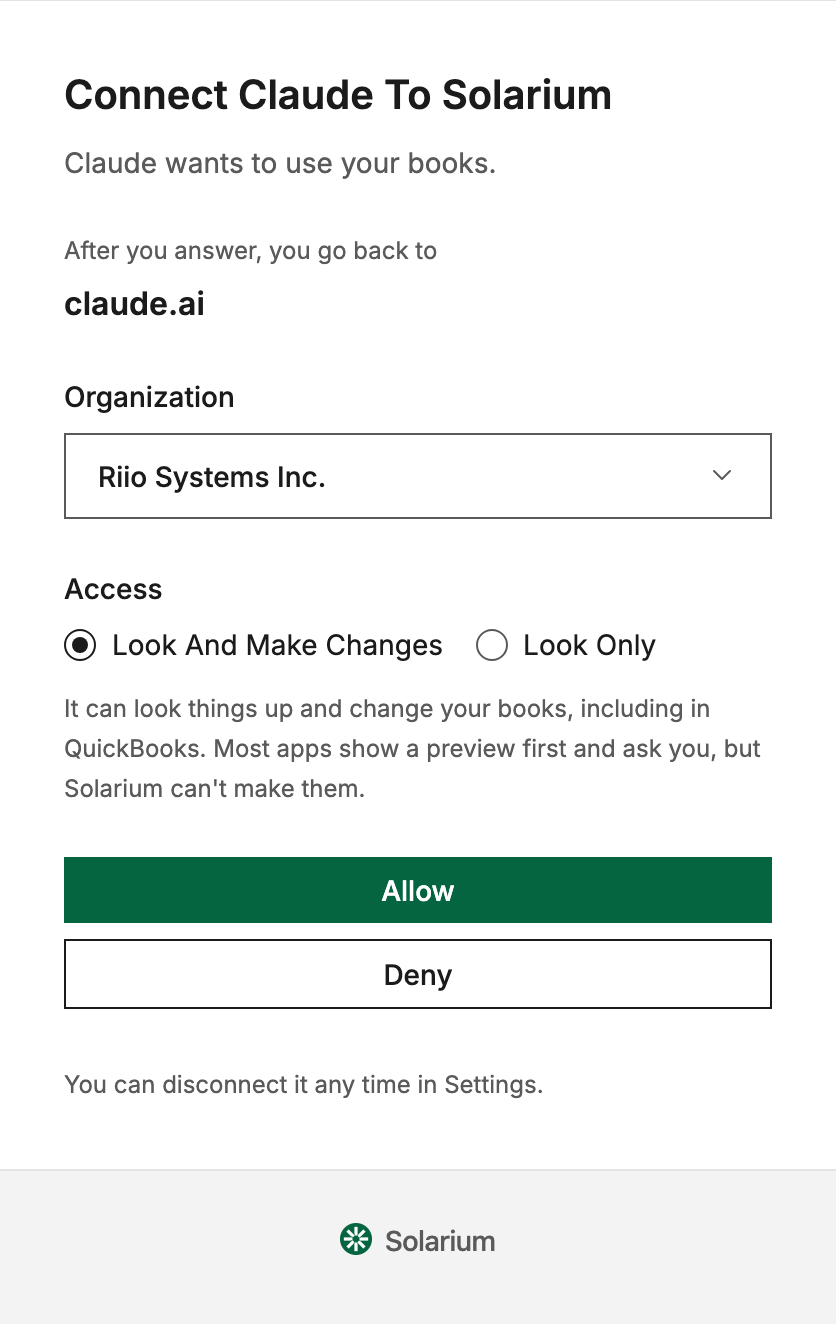
The page is titled Connect Claude To Solarium, or Connect An App To Solarium if Solarium can’t confirm the app’s name. Check the address under “After you answer, you go back to” so you know where you’ll land. Then:
- Under Organization, pick the business Claude should work in.
- Under Access, pick Look And Make Changes to let Claude book and fix things, or Look Only to let it read and show what a change would do without changing anything.
Click Allow. You go back to Claude.
For our example, the owner of Riio Systems Inc. picks Riio Systems Inc. and Look And Make Changes, since she wants Claude to help clear her review queue.
5. Check It’s Connected
Back in Solarium, Settings, MCP Access now lists Claude under Connected Apps, with who connected it, the access you picked and the date. If you’re in setup, the Connect Your AI step turns green on its own.
6. Ask Your First Question
Start a chat in Claude and ask something about your books, like “What did Riio spend on software last quarter?” Claude asks Solarium and answers from your real numbers.
What Happens Next
Claude can read your reports, transactions, receipts, invoices and categories. With Look And Make Changes, it can also categorize, confirm, match receipts, create invoices and more, in Solarium and in QuickBooks if you sync.
Every tool that changes your books previews first. Claude shows you what would change, and nothing happens until you say yes. Each change it makes is listed under Recent Activity in Settings, MCP Access.
A connection works in the one business you picked. To use Claude with a second business, connect again and pick that one.
To stop Claude, click Disconnect next to it under Connected Apps. It stops working with your books right away.
Troubleshooting
- “AI Apps Are Turned Off For This Organization.” An owner or admin turned AI apps off. They can tick Allow AI apps to use this organization’s books in Settings, MCP Access.
- “This business has used its 200 AI app calls for this month on the Free plan.” Upgrade to Essentials in Settings, Billing, or wait for the new month.
- “This Request Has Expired.” The sign-in took too long. Go back to Claude and connect again.
- Claude can’t change anything. You picked Look Only. Disconnect it in MCP Access and connect again with Look And Make Changes.
- The sample business isn’t offered. The sample cafe is only for clicking around in the app. Connect your real business.
Ask Your AI
Once connected, try:
- “How much HST do we owe for this quarter?”
- “Which card charges this month don’t have a receipt yet?”
- “Show me what’s waiting for review, and suggest a category for each one.”
- “Give me a link to connect QuickBooks to Solarium.”
Common Questions
Do I Need An API Key? +
No. Claude sends you to Solarium to sign in, you pick your business and what Claude may do, and click Allow. Your password never goes into the chat.
Can Claude Change My Books Without Asking? +
Tools that change your books preview first and keep nothing. The change only happens when Claude runs it again with your go-ahead. If you only want answers, pick Look Only when you connect.
How Many Questions Can I Ask On The Free Plan? +
Free includes 200 AI app calls a month for each business. A single question can use a few calls. Essentials and Done For You have no limit.
Can I Use Claude Code Too? +
Yes. Run claude mcp add --transport http solarium https://mcp.trysolarium.com/mcp in your terminal, then type /mcp to sign in.