
Create And Send An Invoice
Make an invoice in Solarium, tax it at your customer's province, email it with a PDF and a view link, and record the payment when the money arrives.
You can bill a customer straight from Solarium. Solarium works out the GST/HST, emails the invoice with a PDF attached, books what the customer owes, and tracks it until it’s paid.
Before You Start
- Invoices work on every Solarium plan.
- Add your GST/HST registration number in Settings, then General. Customers need it on an invoice of $100 or more to claim back the tax they paid you, as the CRA’s input tax credit rules say. See Set Up Canadian Tax Details.
- Set your invoice basics once in Settings, then Invoices: Prefix, Next Number, How To Pay, Business Address, Business Email and Days To Pay. How To Pay is printed on every invoice and in its email. Replies to the invoice email go to your Business Email.
- Have your customer’s email and province ready.
Steps
1. Start A New Invoice
Go to Invoices. Click the + button (Add Invoice) and choose New Invoice. On an empty page you can also click New Invoice in the middle of the screen.
2. Pick The Customer
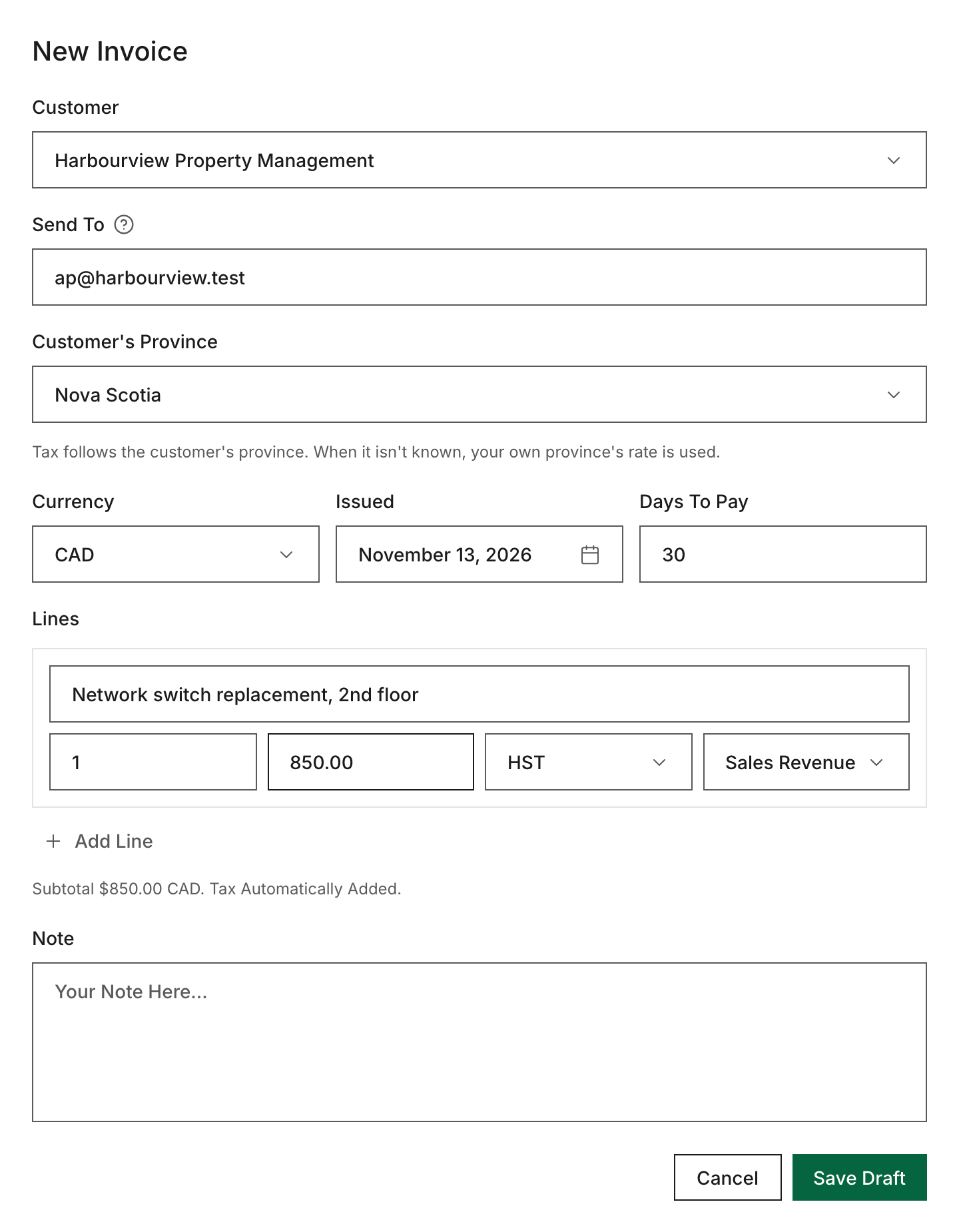
Under Customer, pick someone you’ve billed before, or choose New Customer… and type their name. The Send To field fills in with the customer’s email. You can list more than one email, separated by commas. Solarium saves them on the customer for next time.
3. Set The Customer’s Province
Under Customer’s Province, pick where your customer is. Tax follows the customer’s province. Riio Systems Inc. is in Ontario. When it bills a client in Nova Scotia, the line is charged Nova Scotia HST. When it bills a client in Alberta, it’s charged GST only. If you pick Not Known, your own province’s rate is used.
4. Add The Lines
Fill in Currency, Issued and Days To Pay. Then for each line, enter what it’s for, the Qty and the Price before tax. Each line has a tax menu (HST, GST, No Tax and others for your province) and an Income Account. New lines start on your usual tax and sales account. Click Add Line for more. Solarium shows the subtotal and adds the tax for you.
Add a Note if you like, then click Save Draft.
5. Check The Draft
The invoice opens in a panel. Check the items, the tax rows and the total. Need a change? Click Edit.
6. Send It
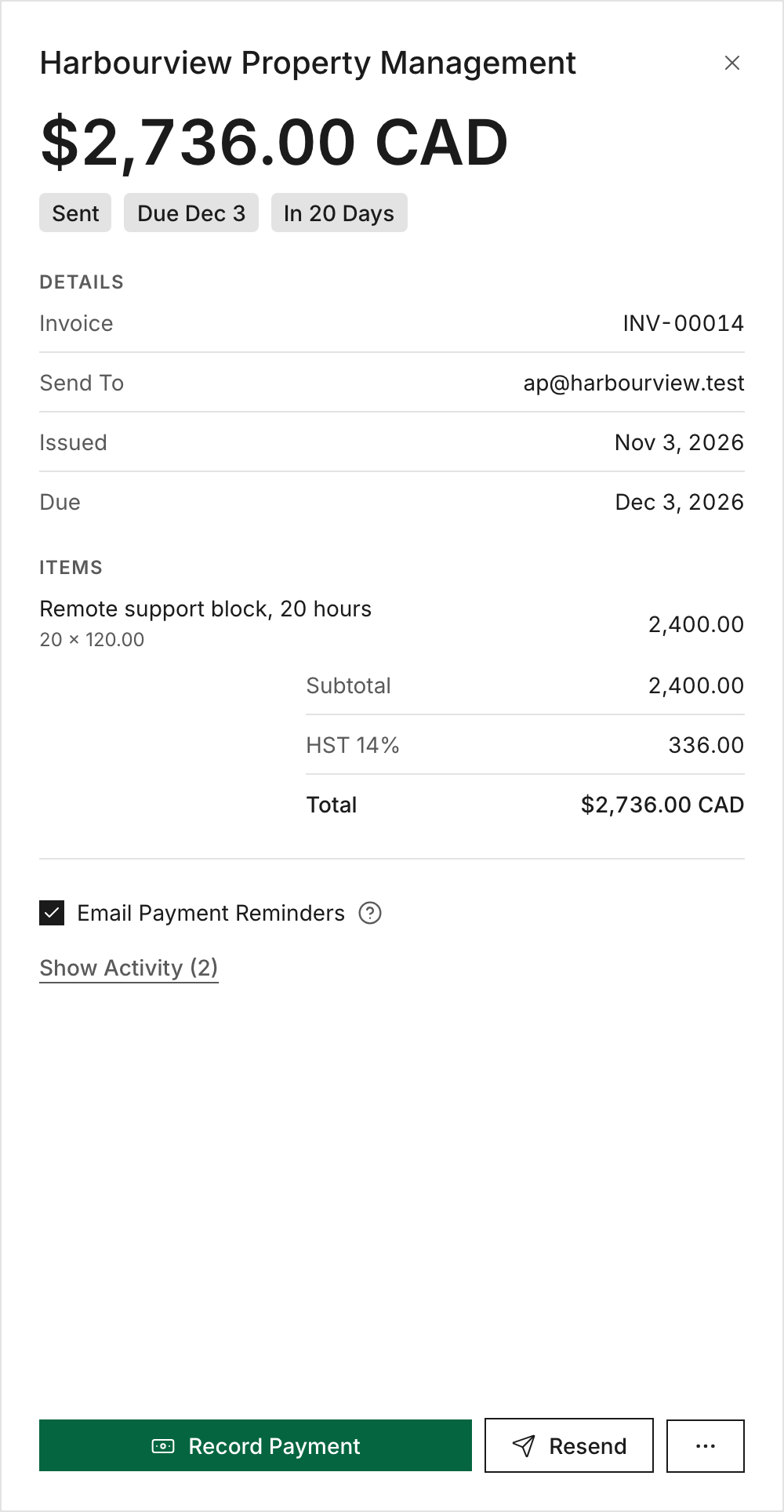
Click Send. Confirm who it goes to and click Send again. Solarium gives the invoice its number, books what the customer owes, and emails them the PDF with a View Invoice link. If the invoice is in another currency, Solarium asks you to confirm the exchange rate first.
7. Record The Payment
When the money comes in, open the invoice and click Record Payment. If the deposit is already in your bank feed, pick it under From A Bank Deposit so it isn’t counted as income twice. Otherwise fill in Paid On, Payment Method and Bank Account, then click Record Payment.
What Happens Next
The invoice moves through Sent, Viewed (once the customer opens the link), Partly Paid and Paid. If the due date passes, it shows as Overdue. The bar at the top of Invoices totals what’s Overdue, Not Due Yet, in Drafts and Paid Last 30 Days.
Payment reminders go out by email unless you turn them off. See Invoice Reminders.
Troubleshooting
- “Every Line Needs A Description And A Price.” Fill in both on every line, or remove the empty line.
- “Has No Email. Add One To Send It.” Add an address in Send To and send again.
- “Only A Draft Can Change. Void It And Make A New One.” Open the sent invoice, click the More Actions button and choose Void Invoice. You can only void an invoice with no payments on it.
- “The Invoice Total Is 0.” An invoice needs a total above zero to send.
Ask Your AI
Invoicing works in Claude and ChatGPT once you’ve connected Solarium. Your AI previews the invoice, and nothing is sent until you say yes.
- “Make an invoice for Harbour Labs in Nova Scotia: 10 hours of consulting at $150, due in 30 days.”
- “Send invoice RIIO-0042 to [email protected].”
- “Which invoices are overdue, and by how much?”
Common Questions
Does The Tax Follow My Customer's Province? +
Yes. Pick the customer's province on the invoice and Solarium charges HST at that province's rate, or GST alone in a province without HST. If you leave it as Not Known, your own province's rate is used.
Can I Change An Invoice After I Send It? +
No. Only a draft can change. To fix a sent invoice with no payments on it, void it and make a new one. The voided number stays used.
Will My GST/HST Number Show On The Invoice? +
Yes, once you add it in Settings, General. Solarium prints it under your business name on every invoice. A Quebec QST registrant's QST number prints next to it.
Do Invoices Go To QuickBooks? +
Solarium books every sent invoice in your own books. Pushing it to QuickBooks as a QuickBooks invoice waits on a tested connection. Until then you'll see a note that it's booked in Solarium only.