
Connect Your Bank
Connect your bank accounts and credit cards to Solarium through Plaid, link each one to the right account, and keep the feed healthy so nothing goes missing.
A bank feed brings every card swipe and deposit into Solarium on its own. This guide shows you how to connect a bank or card, tell Solarium which account each feed is, and fix a feed that stops.
Before You Start
- A plan with bank feeds. Essentials and Done For You include them. The free Essentials trial includes one connected account. On Essentials, each account after the first is $5 a month. The Free plan doesn’t include bank feeds.
- Your online banking login. You sign in to your bank through Plaid, a service that links bank accounts to apps. Solarium never sees your bank password.
- A bank in Canada or the US. Solarium’s Plaid connection covers both countries.
Steps
1. Open Integrations
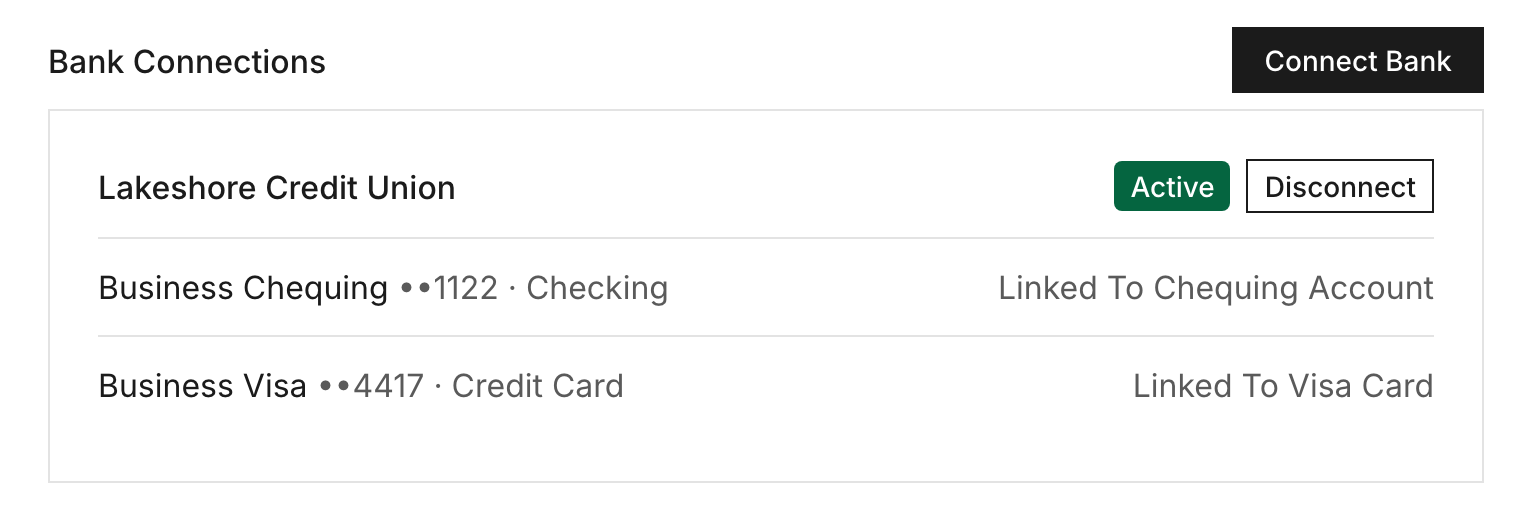
Go to Settings, then Integrations. Under Bank Connections, click Connect Bank. You can also click Connect Bank at the top of Settings, Cards & Banks. During setup, the same thing is the Connect A Bank Or Card button.
2. Sign In Through Plaid
Plaid opens in a window. Find your bank, sign in, and pick the accounts to share. When you finish, the window closes and your bank appears under Bank Connections with an Active status.
3. Link Each Account To Your Books
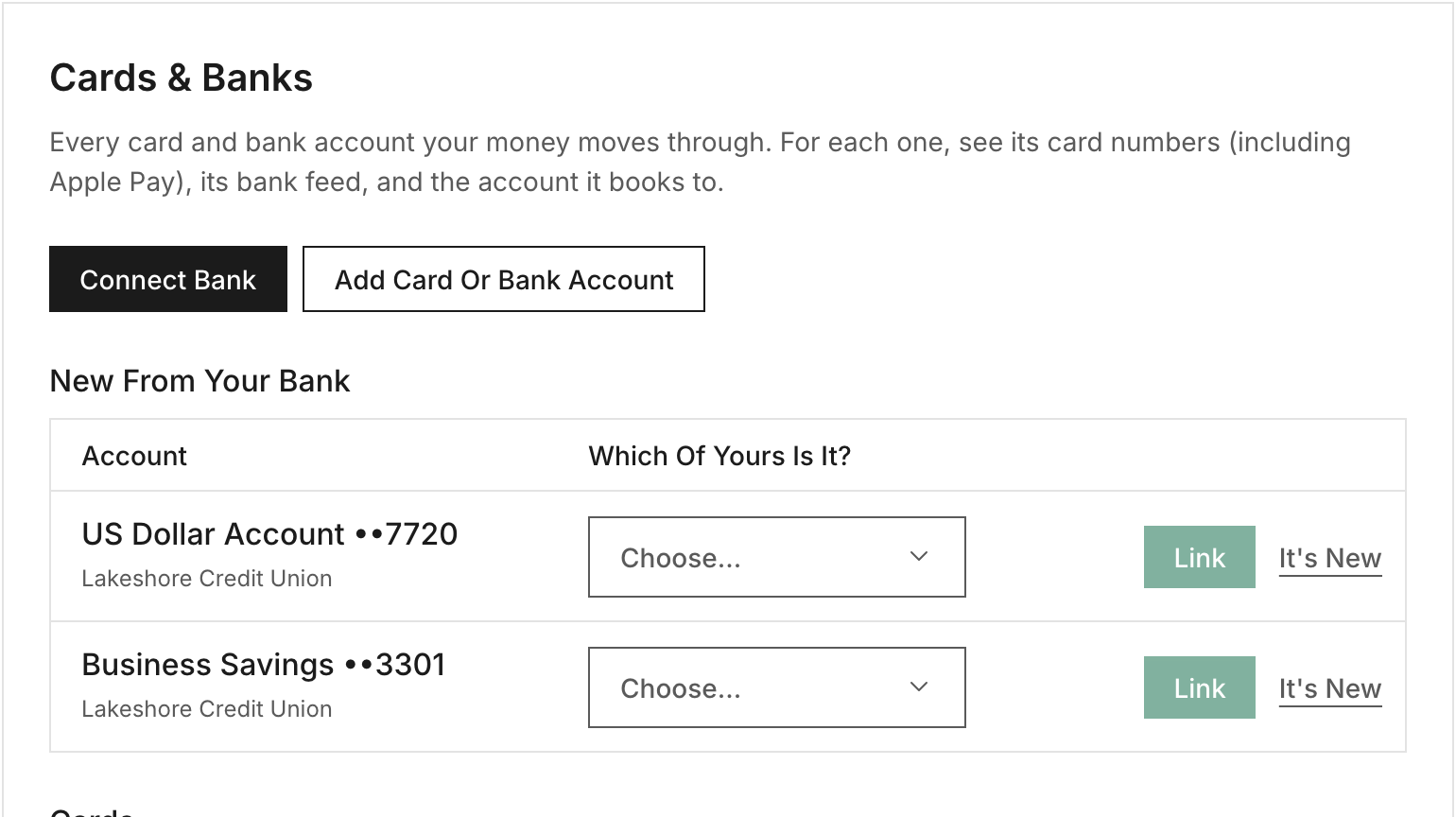
Do this right after you connect, so each transaction knows which account it came through. Go to Settings, then Cards & Banks. Each card or account your bank reported shows under New From Your Bank. For each one, answer Which Of Yours Is It? by choosing the matching account, then click Link.
If it’s an account Solarium doesn’t have yet, click It’s New. In Add Card Or Bank Account, enter a Name, choose Credit Card or Bank Account, add the Last 4 Digits (Optional), and click Add.
For our example, Riio Systems Inc. connects its business chequing and its business Visa. The owner links the chequing feed to Chequing, clicks It’s New for the Visa, and names it “Riio Visa”.
4. Add Your Card Numbers
Click a card in the Cards list to open it. Under Numbers, type the Last 4 digits of any other number that card uses, like the Apple Pay number, and click Add. Receipts that show those digits then find the right card.
5. Let The First Import Run
Solarium brings in your last 90 days of transactions. You don’t need to wait on the page. Head to Review and the transactions start showing up there.
What Happens Next
New transactions arrive on their own. Plaid tells Solarium when new ones are ready, and a nightly sync runs as a backup. A charge that hasn’t posted yet waits in the Waiting column. When it posts, Solarium updates the amount and date and moves it to Needs Review, so it’s never counted twice.
Each transaction gets a vendor and a suggested category from how you booked that vendor before. If you already sent the receipt, Solarium attaches it.
If you also sync QuickBooks and QuickBooks feeds the same account, Cards & Banks shows a Coming In Twice badge. Turn off that account’s bank feed in QuickBooks, or disconnect it in Solarium.
Troubleshooting
- The status says Needs Sign-In. Your bank wants you to sign in again. Click Reconnect next to the bank under Bank Connections and sign in. The missed transactions come in once it’s fixed.
- You got an email about a feed. Solarium emails the business’s owners and admins when a feed breaks, or when nothing has synced for 48 hours. Open Settings, Integrations and reconnect.
- “Your trial includes 1 connected account. Upgrade to Essentials to connect more.” Add a card in Settings, Billing to link more accounts.
- “Bank feeds are part of Essentials. Upgrade in Settings → Billing to connect your bank.” You’re on the Free plan.
- Transactions say Payment Required. They came in before the feed was linked to an account. Link the feed in Cards & Banks so new ones know their account. For the ones already in, pick the account under Paid From when you review them.
- Your bank isn’t in Plaid. Click Add Card Or Bank Account in Cards & Banks. Then on Review, click Add (the plus sign) and choose Import CSV to upload a bank statement CSV or PDF.
Ask Your AI
In Claude:
- “Give me a link to connect my bank to Solarium.”
- “Are any of my bank feeds broken or stale?”
In Claude or ChatGPT:
- “Here’s my Visa statement for October. What’s missing from the books or in there twice?” (attach the statement)
Common Questions
Can Solarium Move Money Out Of My Account? +
No. Solarium connects through Plaid with read-only access. It can see your transactions and balances, and it can never move your money.
How Far Back Does A New Connection Go? +
A new bank connection brings in your last 90 days of transactions. For older history, import a bank statement as a CSV or PDF.
Which Plans Include Bank Feeds? +
Essentials and Done For You. The Essentials trial includes one connected account. Essentials includes one, and each extra account is $5 a month. The Free plan doesn't include bank feeds.
Which Banks Work? +
Banks and card issuers in Canada and the United States that Plaid supports. If yours isn't there, add the account by hand and import its statements.