
Connect Solarium To ChatGPT
Add the Solarium app to ChatGPT, sign in, and ask about your books, review transactions, match receipts and send invoices from a ChatGPT chat.
Connect Solarium to ChatGPT and you can ask about your books in plain words, clear your review queue and send invoices from a chat. This guide shows the quick way through the Solarium app in ChatGPT, and the developer mode way if the app isn’t available to you.
Before You Start
- A Solarium account. If you don’t have a business in Solarium yet, ChatGPT can set it up with you in the chat after you sign up.
- A ChatGPT account.
- Any Solarium plan. Free includes 200 AI app calls a month. Essentials and Done For You have no limit.
Steps
1. Open The Solarium App In ChatGPT
Open the Solarium app page in ChatGPT: https://chatgpt.com/plugins/plugin_asdk_app_6ae67d3937208191b2d7c0e9a8090803. In Solarium, the same link is the Open Solarium In ChatGPT button on the Connect Your AI setup step. Connect the app from that page.
2. Sign In To Solarium
ChatGPT sends you to Solarium. Sign in with your email and password and the code Solarium texts you. If you don’t have an account yet, sign up first and you’ll come back to finish.
3. Choose Your Business And Access
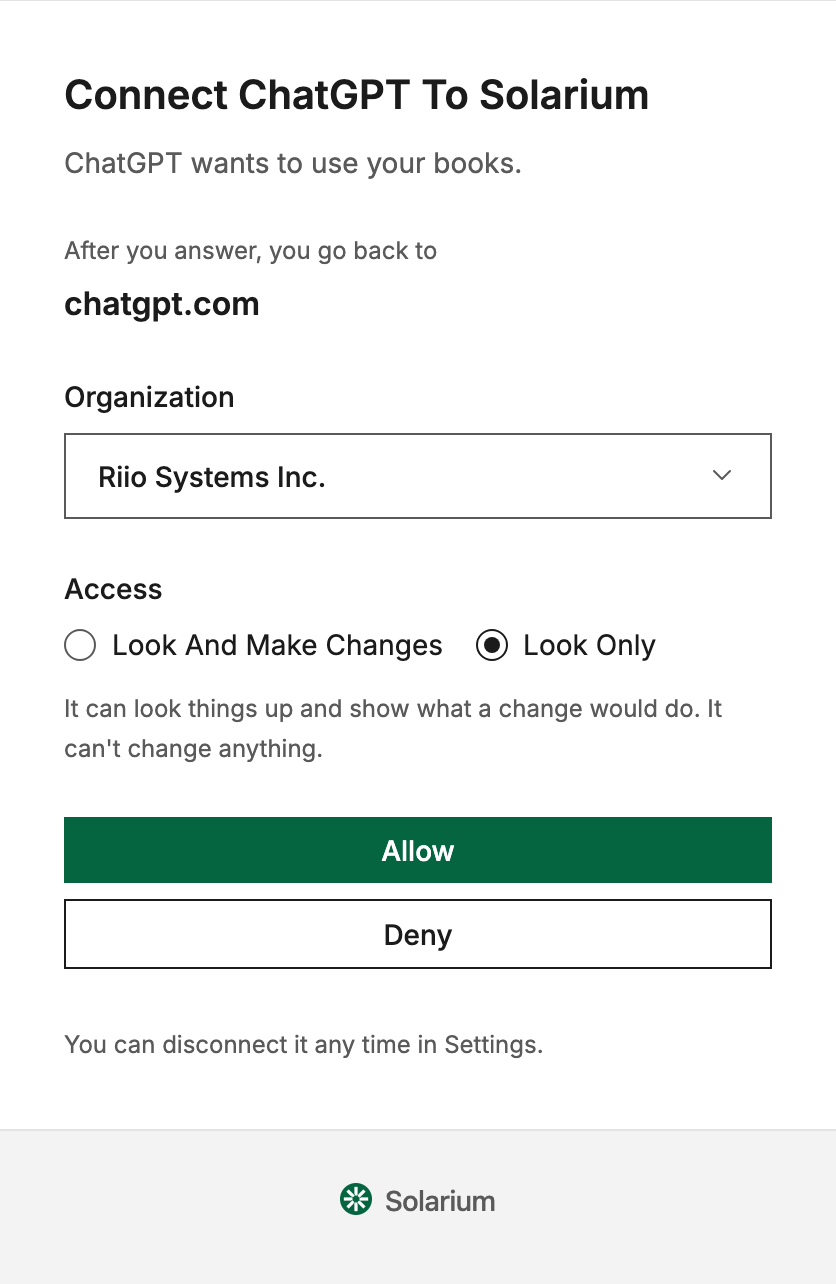
The page is titled Connect ChatGPT To Solarium, or Connect An App To Solarium if Solarium can’t confirm the app’s name. It shows where you’ll go back to after you answer, which should be chatgpt.com.
- Under Organization, pick the business ChatGPT should work in.
- Under Access, pick Look And Make Changes to let ChatGPT book and fix things, or Look Only so it can read and show what a change would do, but not change anything.
Click Allow. You go back to ChatGPT.
For our example, the owner of Riio Systems Inc. picks Riio Systems Inc. and Look Only for now. She wants ChatGPT to answer questions before she lets it make changes.
4. Check It’s Connected
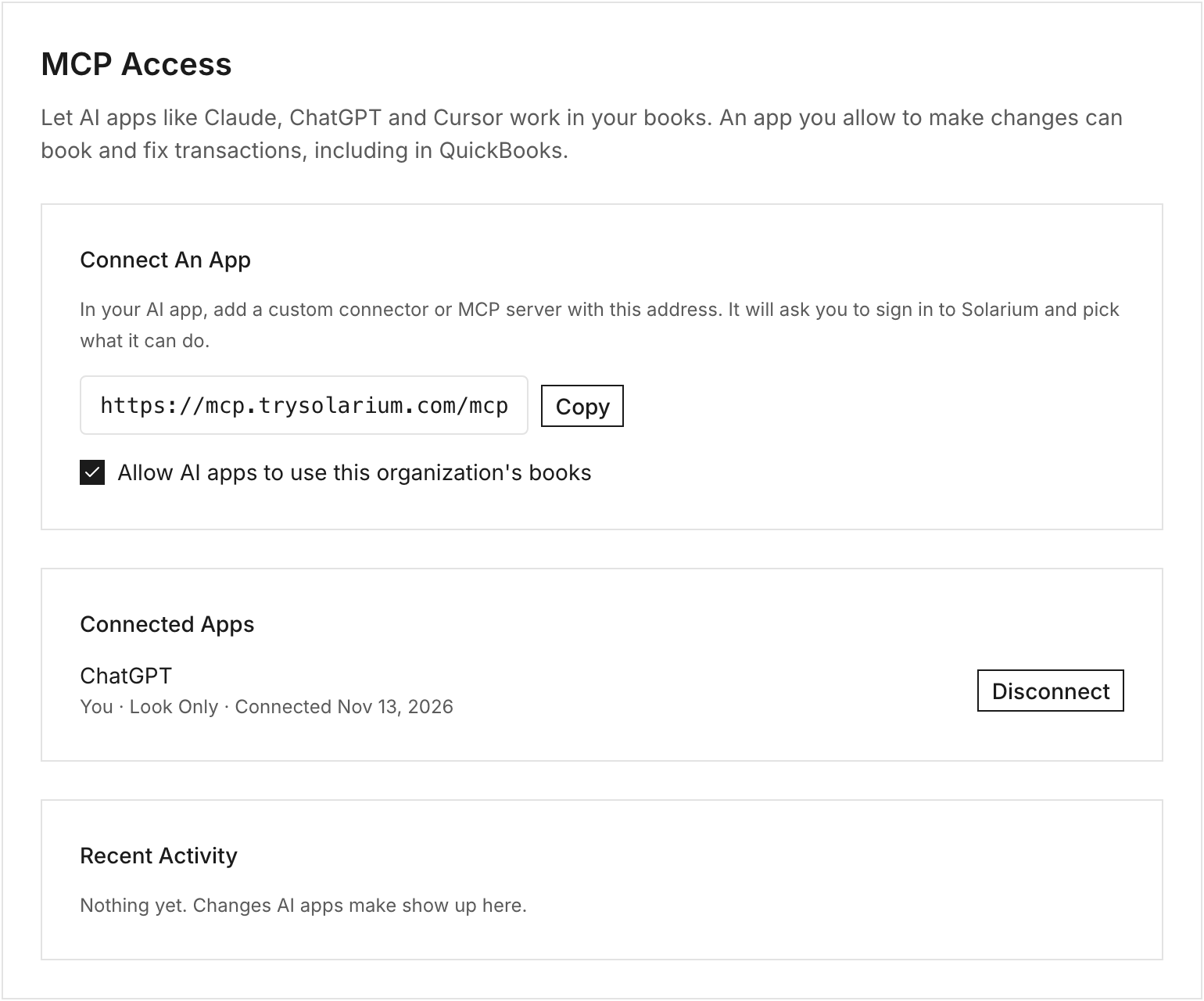
In Solarium, go to Settings, then MCP Access. ChatGPT appears under Connected Apps, with who connected it, the access you picked and the date.
5. If The App Isn’t Available: Use Developer Mode
If you can’t use the Solarium app, connect with developer mode instead:
- In ChatGPT, turn on developer mode. On a Business, Enterprise or Edu workspace, an admin allows it first.
- Create an app with the address https://mcp.trysolarium.com/mcp, and choose OAuth for signing in.
- Sign in to Solarium, pick your business and access, then click Allow, as in steps 2 and 3.
You’ll find the address in Solarium under Settings, MCP Access, with a Copy button.
What ChatGPT Can Do
ChatGPT gets Solarium’s everyday bookkeeping set:
- Who and what: your connection, receipt addresses, categories and contacts.
- Reports: profit and loss, balance sheet, spending by vendor, sales tax, open balances and account lines.
- Review: list and open transactions, add one, categorize, edit, confirm or reject.
- Receipts: list and open receipts, attach an unmatched receipt to a transaction, dismiss junk, and upload a file you share in the chat.
- Invoices: list, open, create, update, send, record a payment, find bank deposits that could have paid an invoice, and void.
- Statements: check a bank or card statement against the books, read-only.
- The Solarium team: read and send messages to the team.
Connecting your bank, QuickBooks or Stripe, syncing, moving many transactions at once, booking unmatched receipts in bulk and QuickBooks repairs are in Claude and the Solarium app, not ChatGPT.
What Happens Next
Changes preview first. ChatGPT shows you what would change, and nothing happens until you agree. Each change is listed under Recent Activity in Settings, MCP Access. To stop ChatGPT, click Disconnect next to it there.
A connection works in the one business you picked. For a second business, connect again and pick that one.
Troubleshooting
- “AI Apps Are Turned Off For This Organization.” An owner or admin can tick Allow AI apps to use this organization’s books in Settings, MCP Access.
- “This business has used its 200 AI app calls for this month on the Free plan.” Upgrade to Essentials in Settings, Billing, or wait for the new month.
- “This Request Has Expired.” Go back to ChatGPT and connect again.
- ChatGPT can’t change anything. You picked Look Only. Disconnect it in MCP Access and connect again with Look And Make Changes.
Ask Your AI
Once connected, try:
- “What was Riio’s profit this quarter compared with last quarter?”
- “What’s waiting for review? Confirm the ones with a receipt attached, and show me first.”
- “Create an invoice to Northwind Labs for 10 hours of consulting at $150 an hour and email it.”
Common Questions
Do I Need An API Key? +
No. ChatGPT sends you to Solarium to sign in. You pick your business and what ChatGPT may do, then click Allow.
Can ChatGPT Do Everything Claude Can? +
Not quite. ChatGPT gets Solarium's everyday set: reports, review, receipts, invoices and statement checks. Connecting your bank, QuickBooks or Stripe, QuickBooks repairs and bulk changes stay with Claude and the Solarium app.
Can ChatGPT Change My Books Without Asking? +
Tools that change your books preview first and keep nothing until you agree. If you only want answers, pick Look Only when you connect.
How Many Questions Can I Ask On The Free Plan? +
Free includes 200 AI app calls a month for each business. Essentials and Done For You have no limit.