
Match Receipts To Transactions
How Solarium matches each receipt to its bank or card charge, how to check or undo a match, attach one yourself, and book receipts that never get a charge.
A receipt on every charge is what lets you claim your GST/HST back and answer the CRA’s questions later. Solarium does most of the matching for you. This guide shows how to check its work, fix a wrong match, and handle receipts that have no charge.
Before You Start
- Any plan. Matching works on every plan.
- Receipts coming in. Send them by email, text or Scan Receipts. See Send Receipts By Email Or Text.
- A bank feed helps. With a connected bank, there’s a charge for each receipt to match. Without one, every receipt shows as unmatched right away.
- Card numbers on file. Add each card’s last 4 digits in Settings, Cards & Banks, so receipts that print them find the right card.
Steps
1. Let Solarium Match Automatically
When a receipt arrives, Solarium looks for an unmatched charge in the same currency within 3 days of the receipt date. It scores the vendor, the amount and the date, and attaches the receipt when the match is strong.
A matched card in Review shows the Review Receipt tag. A card with no receipt shows Receipt Needed.
2. Check The Match
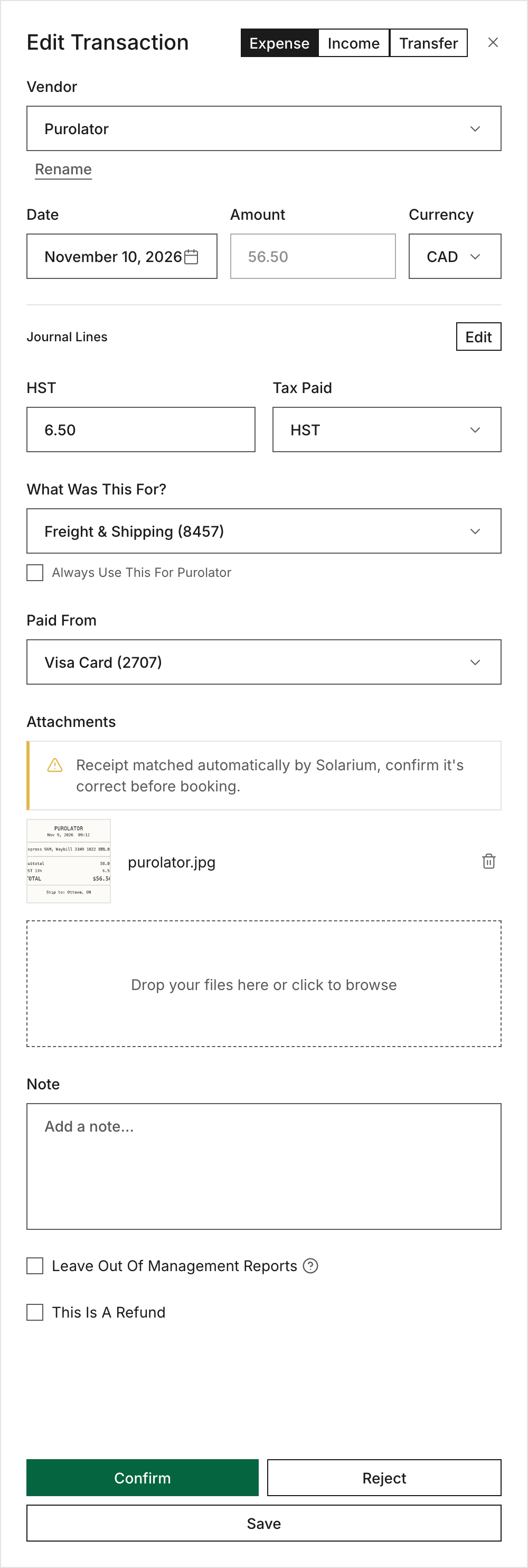
Click the card to open it. Under Attachments, Solarium shows “Receipt matched automatically by Solarium, confirm it’s correct before booking.” Click the receipt to view it. If it’s the right one, check the category and click Confirm. Confirming accepts the receipt as proof for that transaction.
For our example, Riio Systems Inc. texted a $56.50 courier receipt on Monday. The courier charge posted to the Riio Visa on Tuesday, and Solarium attached the receipt. The owner opens it, sees the waybill number and amount match, and confirms.
3. Undo A Wrong Match
If a transaction has two or more receipts and one belongs to something else, click that receipt’s detach button in Attachments, labelled “Detach Receipt Into Its Own Transaction”. In Detach Receipt, click Detach. The receipt becomes its own transaction in Needs Review, with the amount from the receipt.
When a transaction has only one receipt, the app offers the delete button, not detach. Delete throws the receipt away, so only use it for something that isn’t a receipt at all, like a logo or a blank photo. To move a single wrong receipt onto the right transaction, ask your AI in Claude to move it. It shows you the move before it makes it.
4. Attach A Receipt Yourself
Open the transaction. Under Attachments, drop the file in the box that says “Drop your files here or click to browse”, or click it to pick a file. Images, PDFs and HEIC photos all work. Solarium shows “Receipt Attached.” when it’s done.
5. Book Receipts With No Charge
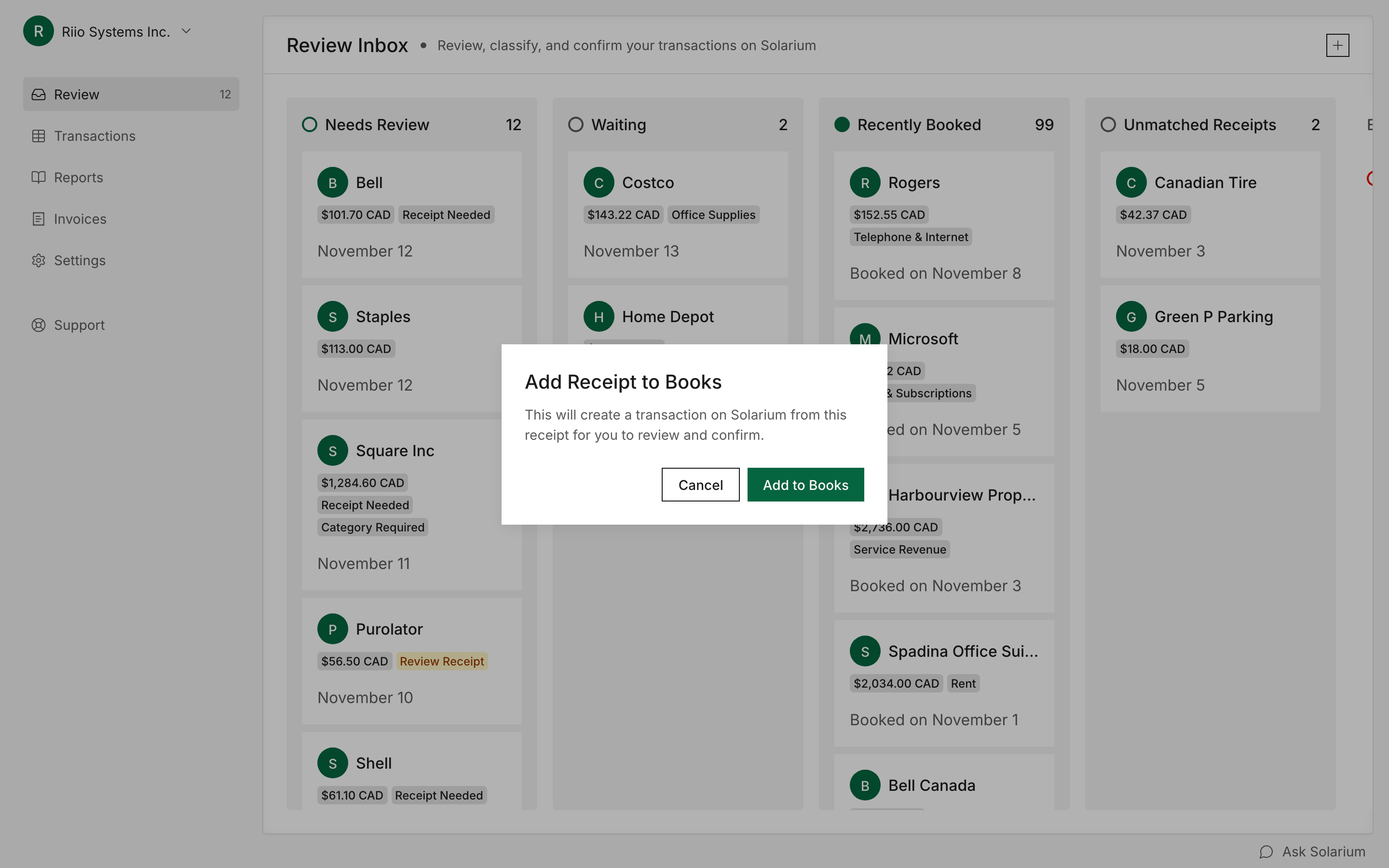
Receipts with no matching charge after 3 days show in the Unmatched Receipts column on Review. If you haven’t connected a bank, they show there right away. These are usually cash purchases, or a card Solarium doesn’t see.
Click the receipt. In Add Receipt to Books, click Add to Books. Solarium makes a transaction from the receipt and opens it so you can check the category and account, then Confirm.
6. Merge If The Charge Turns Up Later
Sometimes the charge arrives after you’ve added the receipt to your books. Solarium flags the new one as Possible Duplicate. Open it, click Merge Into Original, check the two side by side in Merge Transactions, and click Merge. You end up with one transaction that has both the bank charge and the receipt.
What Happens Next
When you confirm a transaction with a receipt, the receipt stays with it in Solarium. If you sync with QuickBooks, the receipt file goes to QuickBooks too, attached to the transaction.
Troubleshooting
- A receipt didn’t match. Solarium needs an amount on the receipt, the same currency as the charge, and a date within 3 days. A receipt for a US-dollar charge on a Canadian card can miss, because the bank shows Canadian dollars. Attach it yourself.
- The receipt is on a transaction already in QuickBooks. Detaching removes the receipt image from QuickBooks too. The booked amount stays the same.
- Different amounts when merging. Solarium warns you when the two transactions have different amounts. Make sure they’re really the same purchase.
Ask Your AI
In Claude or ChatGPT:
- “Which receipts in Solarium are still unmatched?”
- “Attach the unmatched Esso receipt from October 3 to the $64.20 Esso charge on the Riio Visa.”
- “Dismiss the unmatched receipts that are just logos or signatures.”
In Claude, you can also say “Add the unmatched cash receipts to my books for review.” or “Move the receipt on the Esso charge to the Shell charge.”
Common Questions
How Does Solarium Decide A Receipt Matches A Charge? +
It looks for an unmatched charge in the same currency within 3 days of the receipt date, and scores the vendor, amount and date. When the score is strong enough, it attaches the receipt. You check it before you confirm.
What If I Paid Cash? +
There's no bank charge to match, so the receipt shows in Unmatched Receipts after 3 days. Click it and choose Add to Books, and Solarium makes a transaction from the receipt.
Can I Move A Receipt From One Transaction To Another? +
When a transaction has more than one receipt, you can detach one in the app and it becomes its own transaction. To move a receipt straight onto a different transaction, ask your AI in Claude. It previews the move first.
Why Does A Transaction Say Receipt Needed? +
No receipt is attached yet. Send it by email or text, or drop the file into the transaction's Attachments box.