
Teach Solarium Your Categories
Show Solarium how you categorize each vendor once, set rules that always apply, and keep your vendor list clean so new transactions arrive already sorted.
The more Solarium knows about how you book each vendor, the less you have to type. This guide shows how Solarium learns from your choices, how to set a rule that always applies, and how to tidy your vendors so the rules stay right.
Before You Start
- Any plan. Categories, vendors and rules work the same on every plan.
- A few transactions to review. Solarium learns from the ones you confirm. See Review And Confirm Transactions.
Steps
1. Confirm With The Right Category
Open a transaction in Review, pick the category under What Was This For? and click Confirm. That’s all the teaching most vendors need. Solarium remembers the category for that vendor and fills it in on the vendor’s next transaction. If you change your mind later, confirm the next one with the new category and Solarium follows the newer choice.
2. Make It A Rule
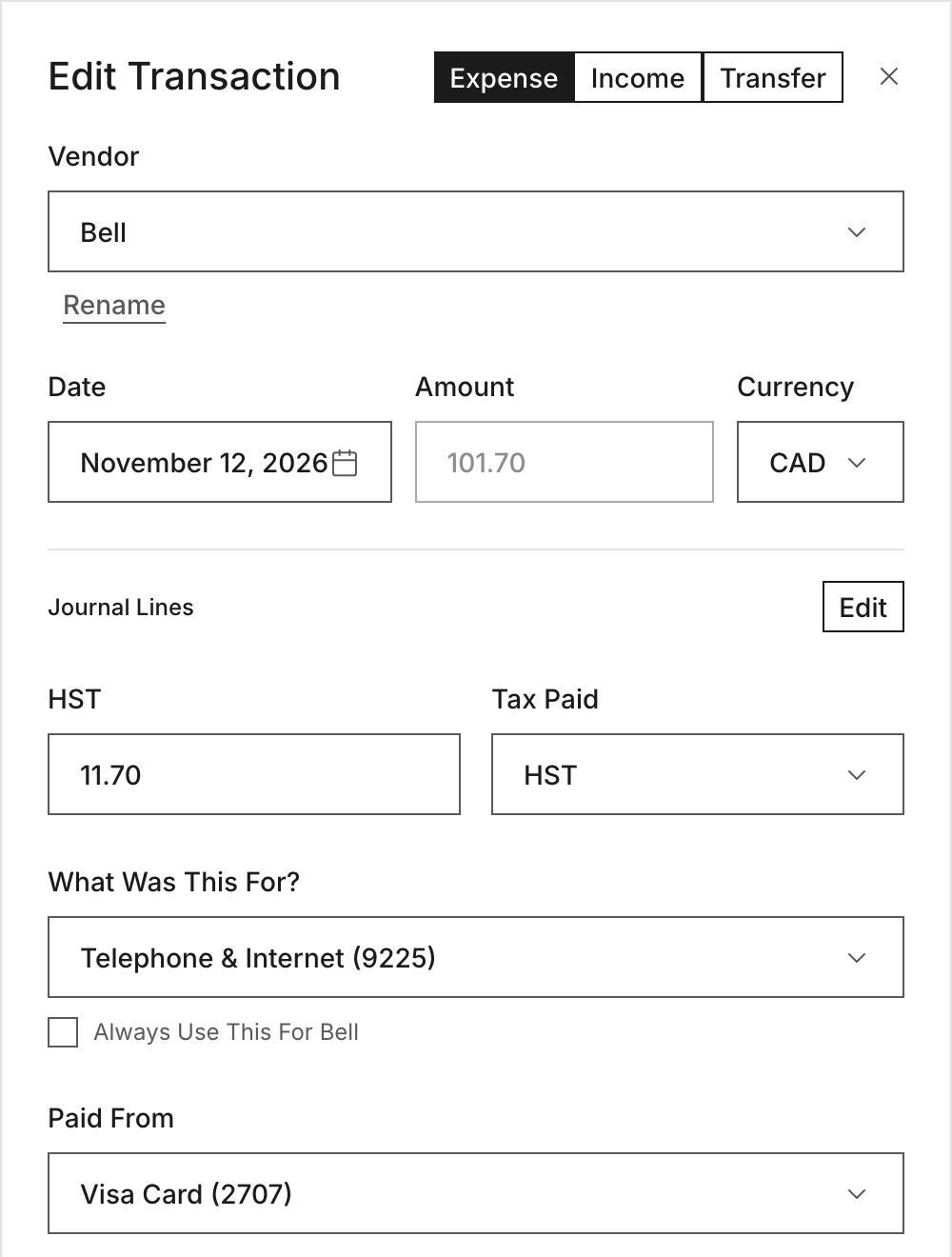
For a vendor that always goes to the same place, make it explicit. In the transaction drawer, set the Vendor first. Then, under the category, tick Always Use This For followed by the vendor’s name, like Always Use This For Bell. Solarium saves it right away and says, for example, “Bell Will Always Be Phone And Internet.”
For our example, Riio Systems Inc. pays Bell every month for the office phone line. The owner ticks the box once, and every Bell charge after that arrives in Needs Review with the category already picked.
3. Review Your Rules In Vendors
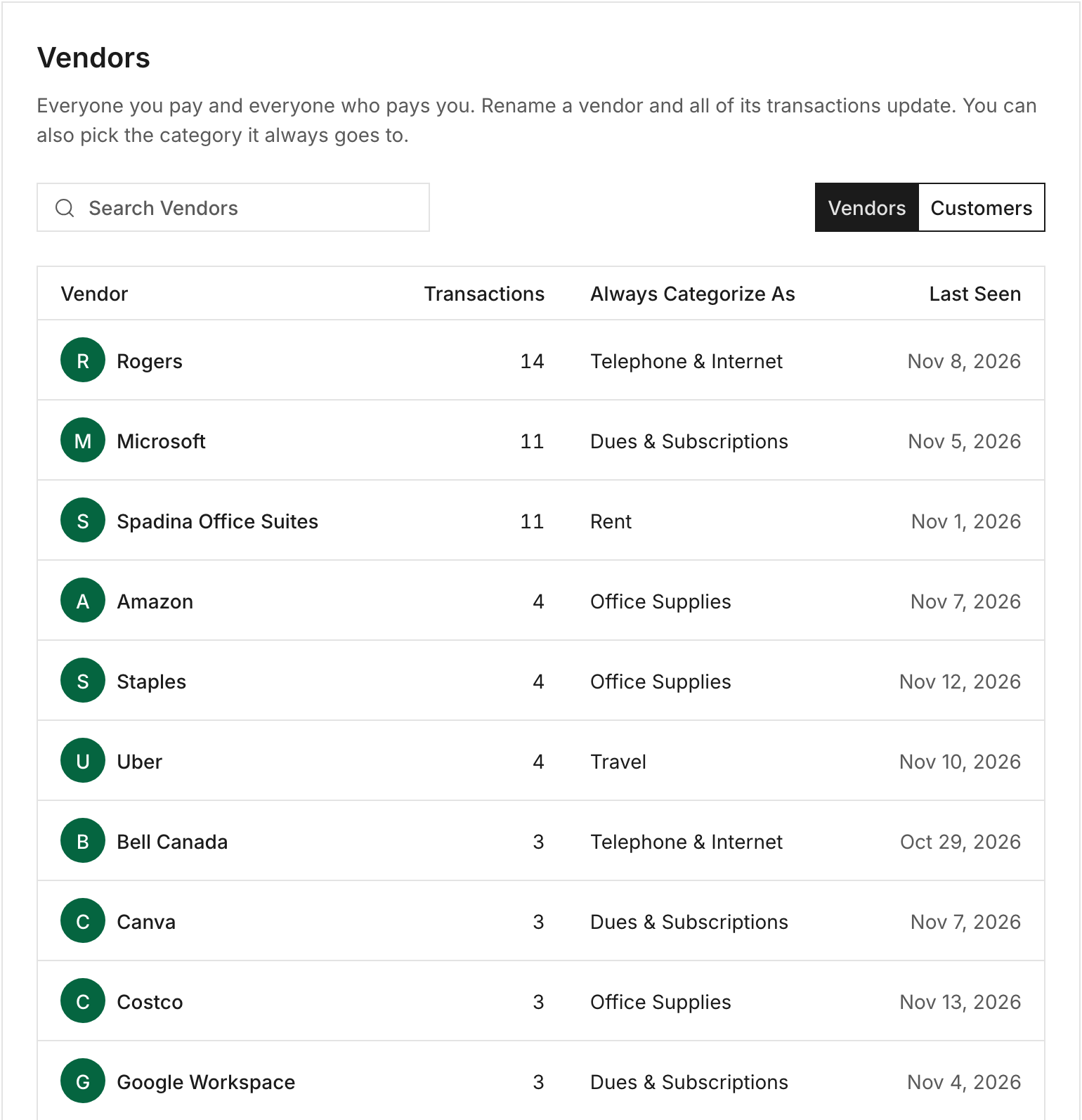
Go to Settings, then Vendors. The list shows everyone you pay, with how many transactions each has and its Always Categorize As rule, or Not Set. Switch to Customers to see who pays you.
Click a vendor to open it. Under Always Categorize As, pick a category to set the rule, or click Stop Auto-Categorizing to remove it. With no rule, Solarium still suggests a category each time from what you’ve confirmed before.
4. Clean Up Vendor Names
Banks write vendor names in odd ways, so the same store can show up twice. In Settings, Vendors, open a vendor and:
- Under Name, type a clearer name and click Rename. Every transaction for that vendor updates.
- Under Merge, pick the vendor it should be part of and click Merge. Its transactions and receipts move over. Amounts and categories don’t change.
Merging keeps your rules and reports in one place instead of split across two names.
5. Add A Category You’re Missing
In the transaction drawer, open the category list and click Add New Category at the bottom. Enter an Account Name, pick a Tax Code, and click Create. The tax code decides where the category lands on your financial statements and tax return.
You can also add one from Settings, Account Mapping, with the Add Expense Account button over the Expenses list.
What Happens Next
When a new transaction comes in, Solarium matches the bank’s text to your vendors and rules, and fills in the category before it reaches Needs Review. You still confirm it, so nothing is booked on a guess. Every confirm keeps teaching Solarium, so the inbox gets quicker over time.
Troubleshooting
- There’s no Always Use This box. The transaction has no vendor yet. Pick or add a vendor in the Vendor field and the box appears.
- A rule didn’t catch a charge. The bank may have used a new spelling for the vendor. Set the vendor and category on that charge and confirm it, and Solarium learns the new spelling too.
- A category doesn’t sync to QuickBooks. A new category needs a QuickBooks account if you sync. Review shows a Map Categories button when one isn’t mapped yet.
Ask Your AI
In Claude or ChatGPT:
- “List my Solarium categories.”
- “Set the Bell charge in review to Phone And Internet.”
In Claude:
- “Move every Uber Eats charge this year from Travel to Meals And Entertainment. Show me the preview first.”
- “Add a category for Software Subscriptions.”
Rules themselves are set in the app. There’s no AI tool for Always Use This yet.
Common Questions
Does Solarium Learn From What I Confirm? +
Yes. Each time you confirm a transaction, Solarium remembers the category you used for that vendor and suggests it on the vendor's next transaction. The latest one you confirmed wins.
Will A Rule Book Transactions Without Me? +
No. A rule fills in the suggested category on new transactions. You still check and confirm each one in Review.
Does A New Rule Change Transactions I Already Booked? +
No. Rules apply to transactions that come in after you set them. To move past transactions to a new category, ask your AI in Claude to do it, and check the preview first.
Can I Turn A Rule Off? +
Yes. Untick Always Use This in the transaction drawer, or open the vendor in Settings, Vendors and click Stop Auto-Categorizing.